Discover how Infmap works
Choose your user type to see a personalized walkthrough of the platform
For Brand
Companies
Registration
First, click the "Create Account" button

You will then be redirected to the registration page where you will need to select 'Brand' from the dropdown menu before starting your registration.
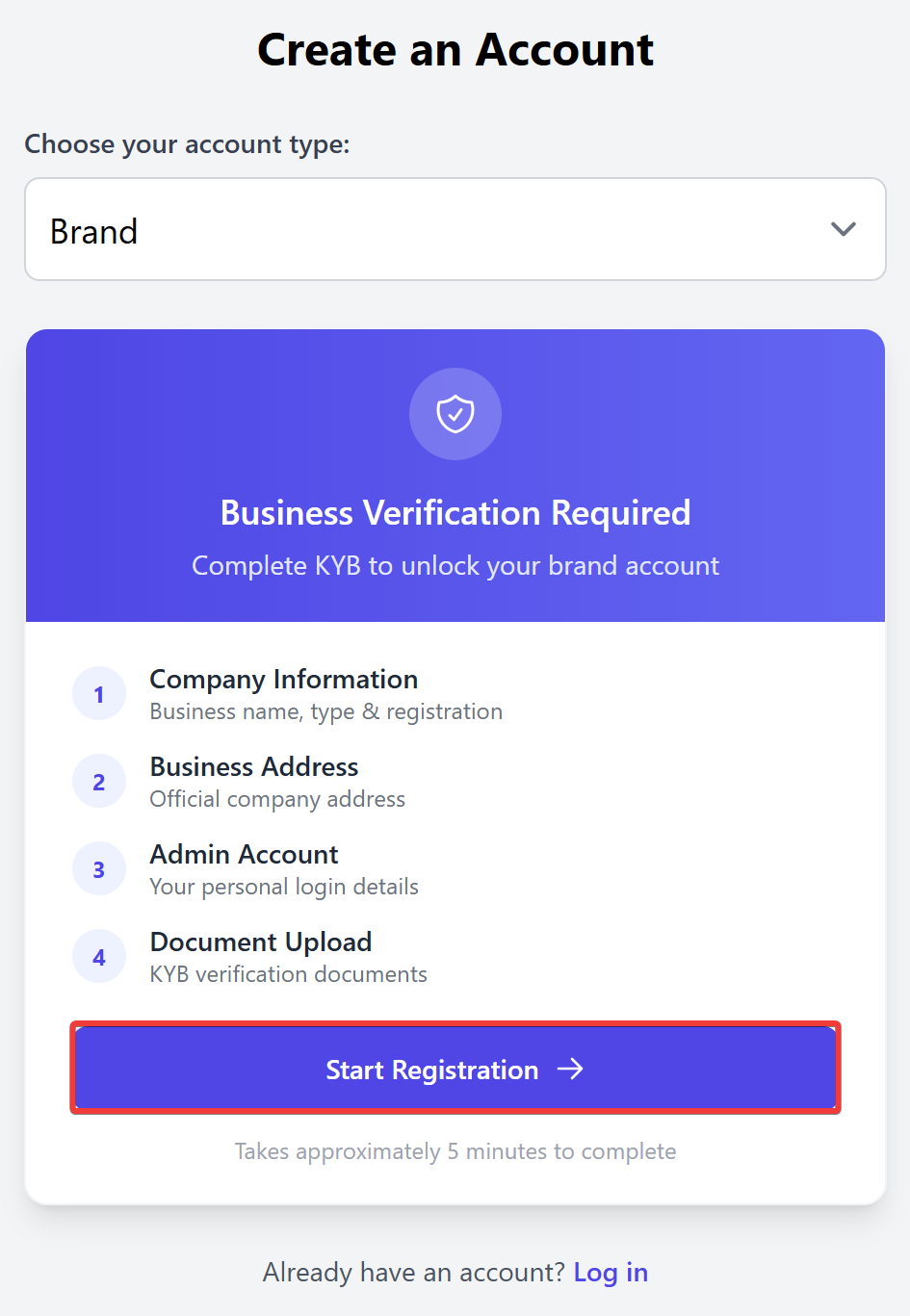
Registering as a company requires KYB verification. This involves four steps where you will need to fill in the form and then submit your application.
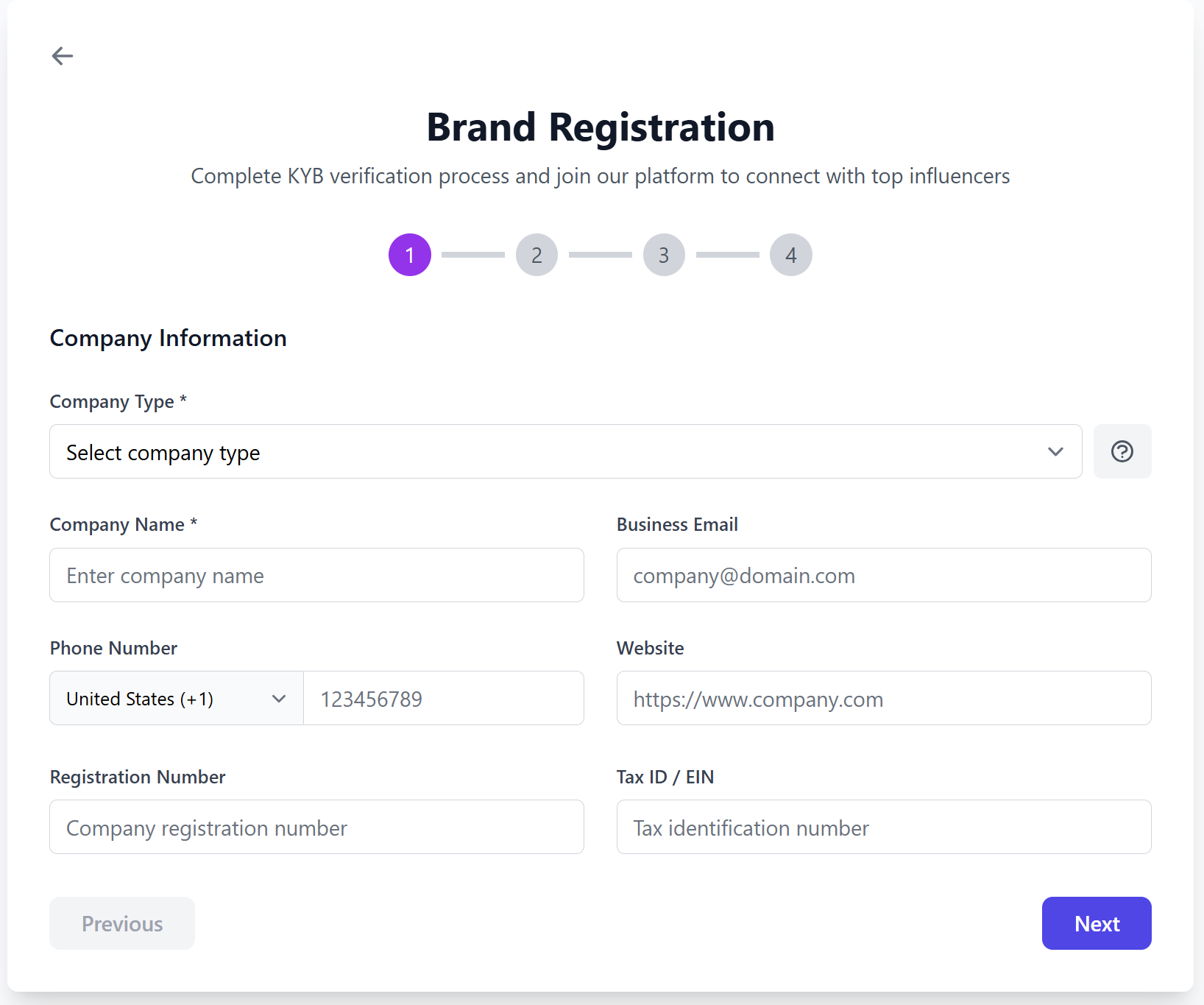
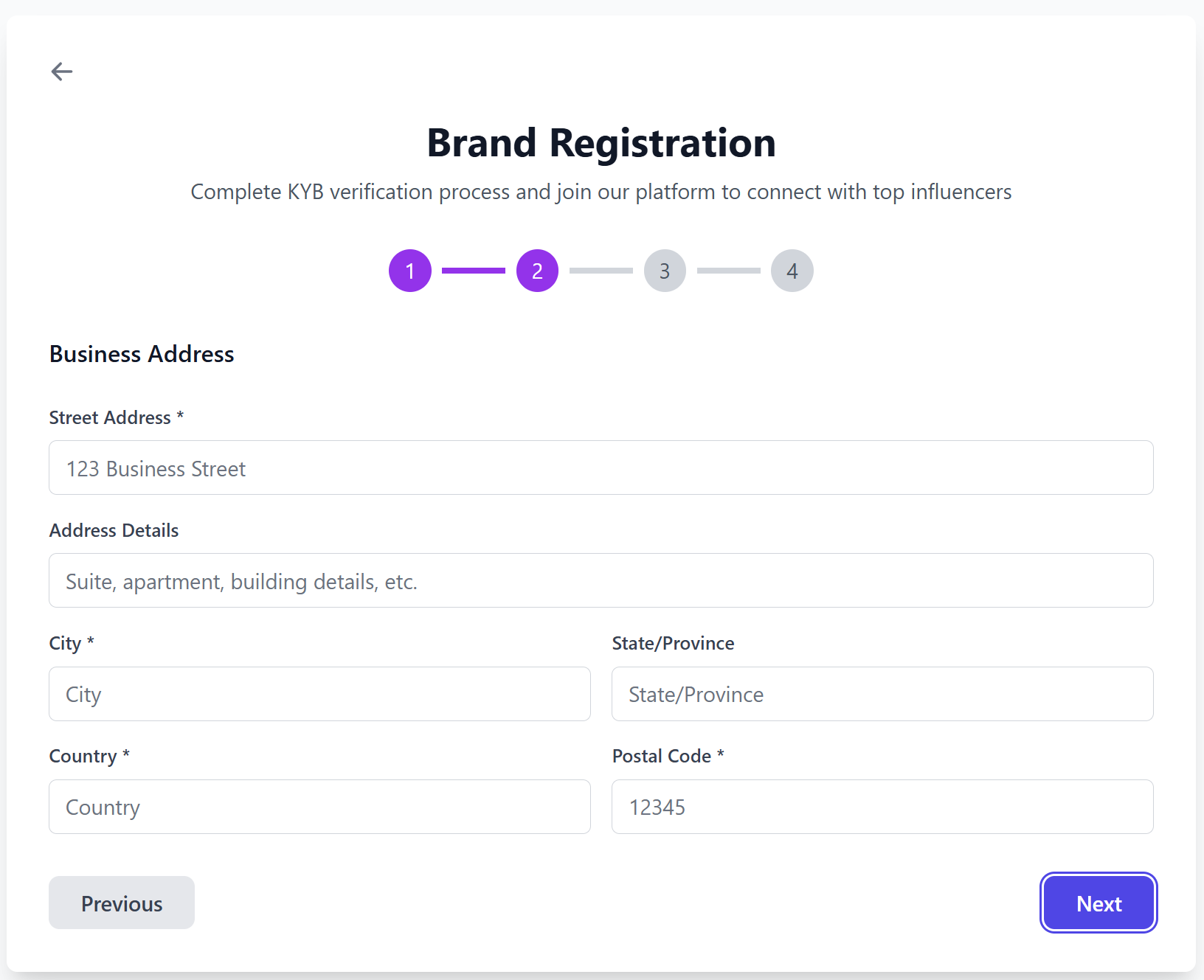
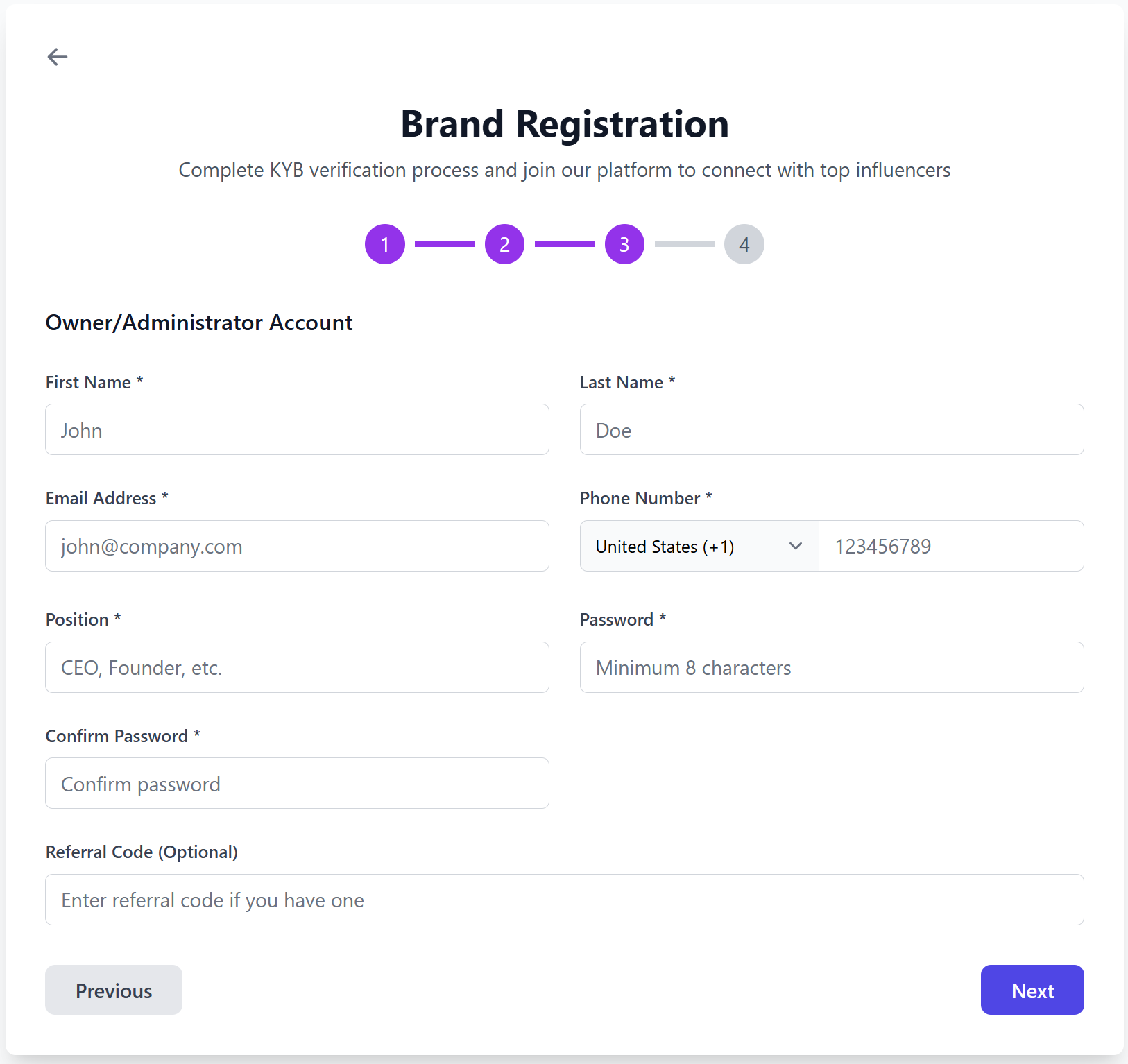
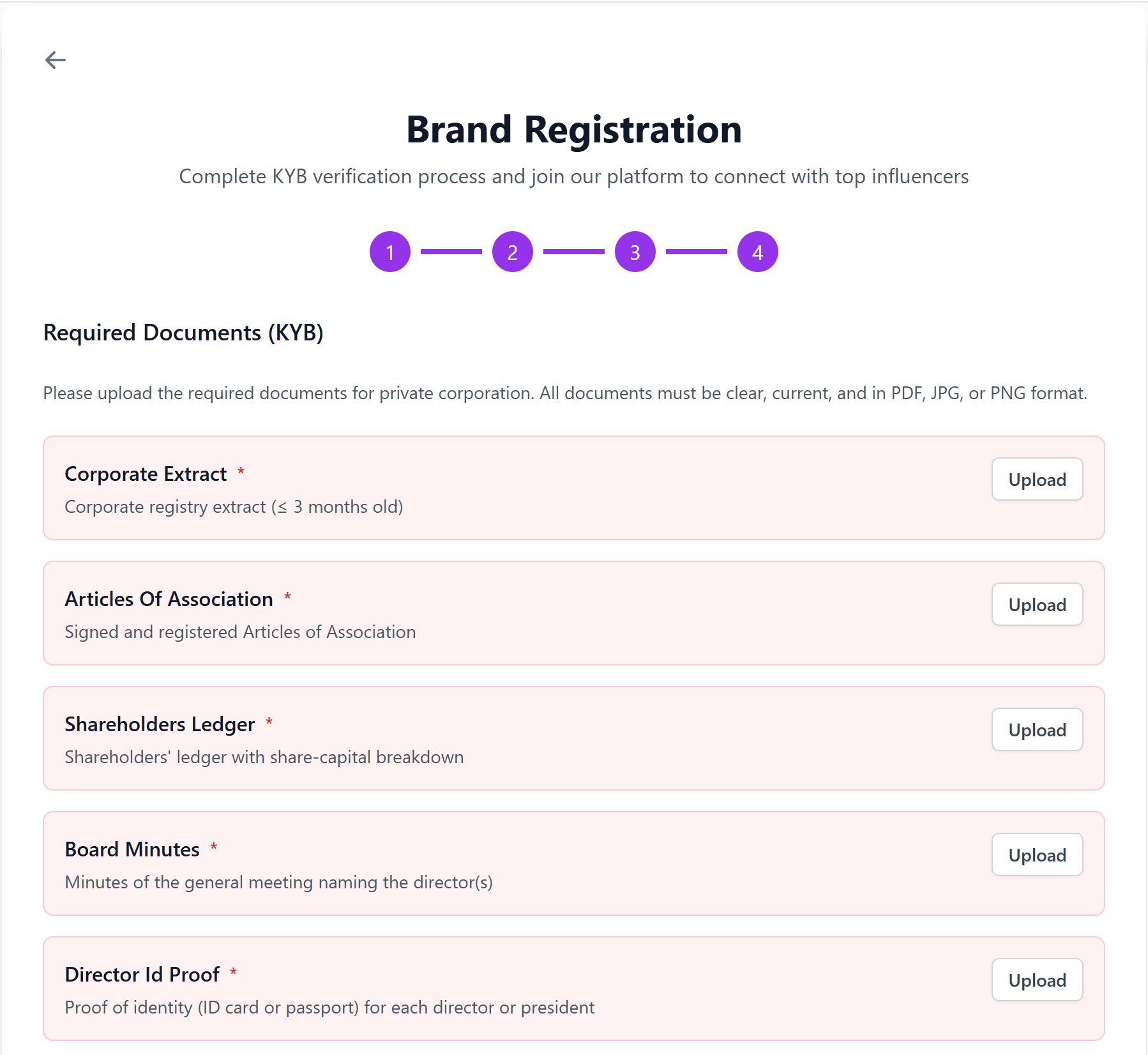
You will then need to wait for our team to verify your documents.
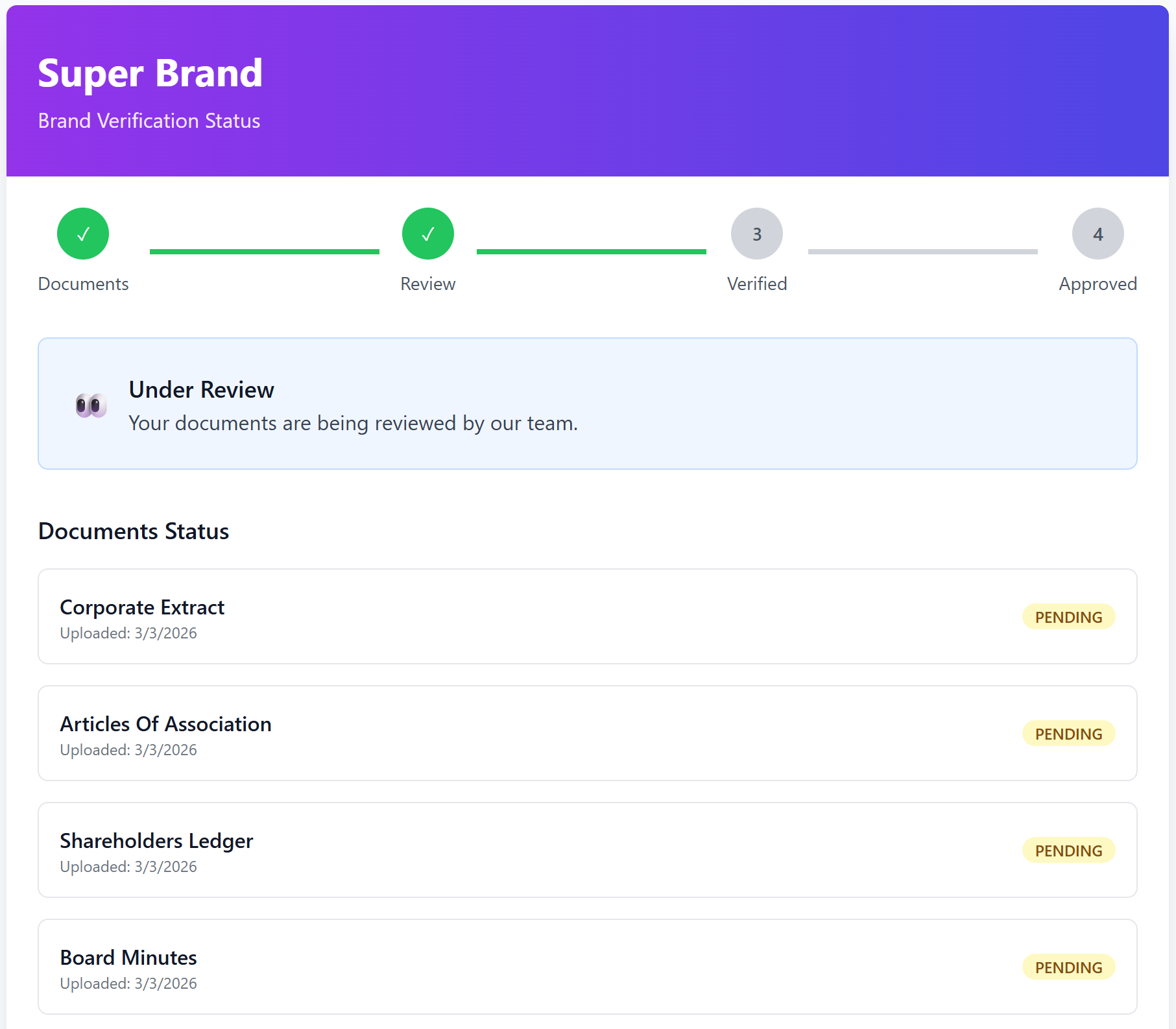
We might ask you to upload or re-upload some documents.
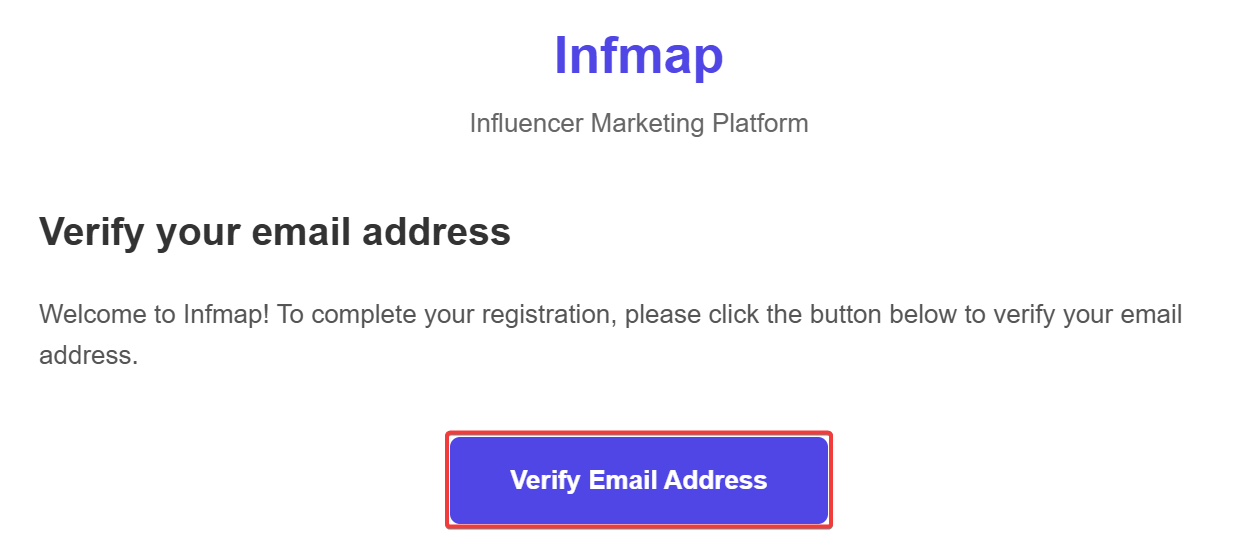
You will also receive a confirmation email from [email protected], click on the following button to verify your email
When your application is approved, you will be notified by email.
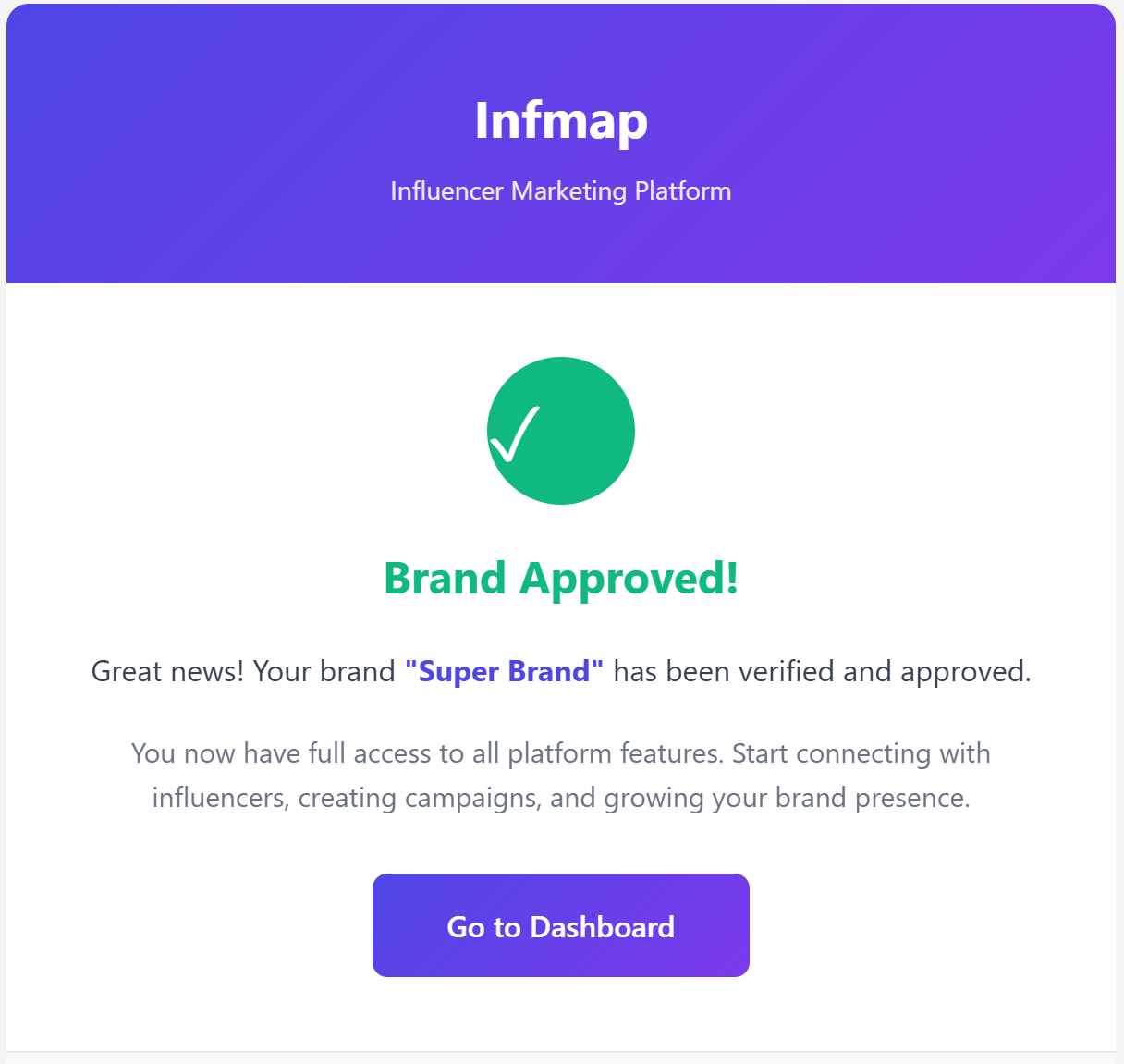
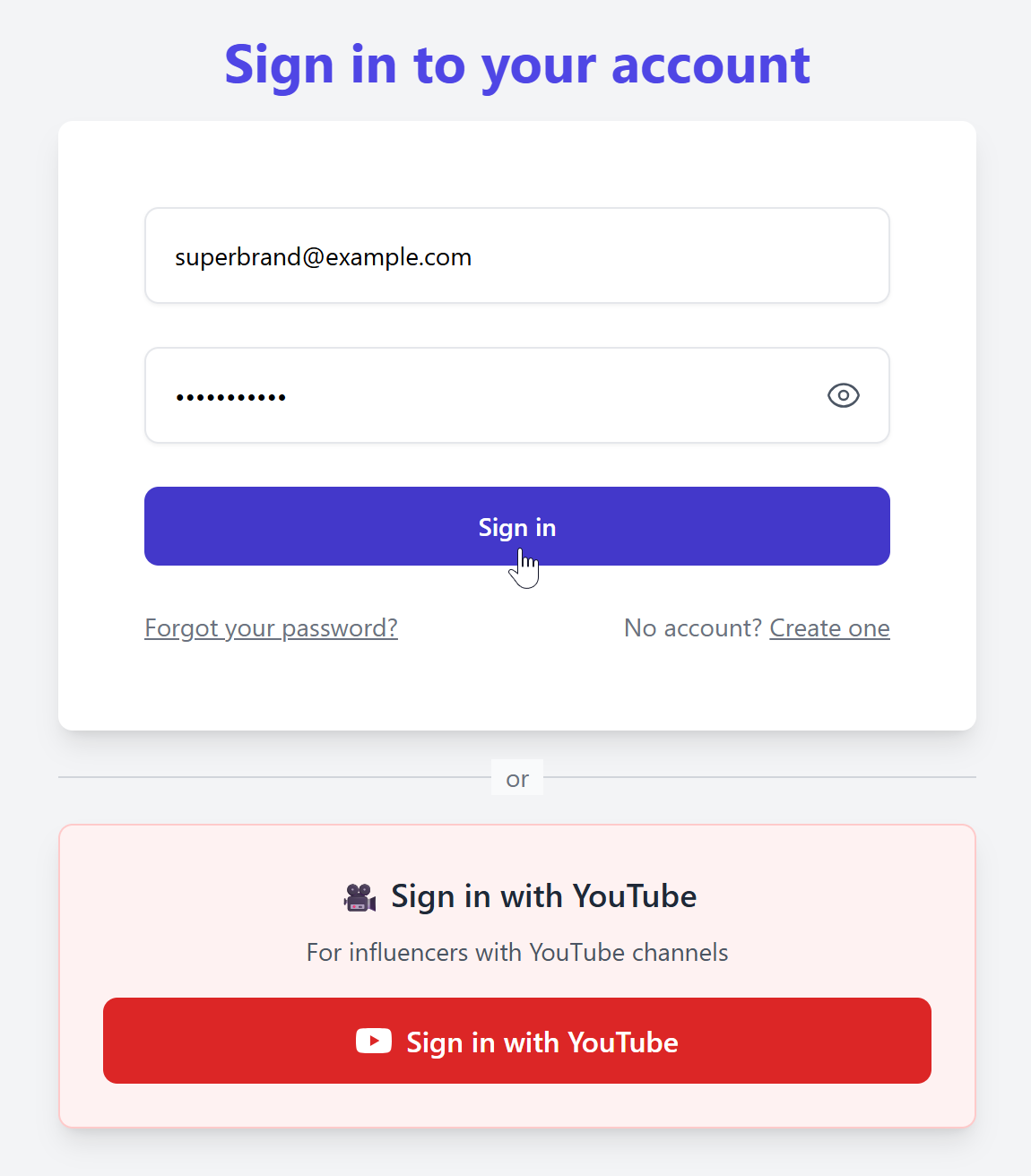
All you have to do now is log in
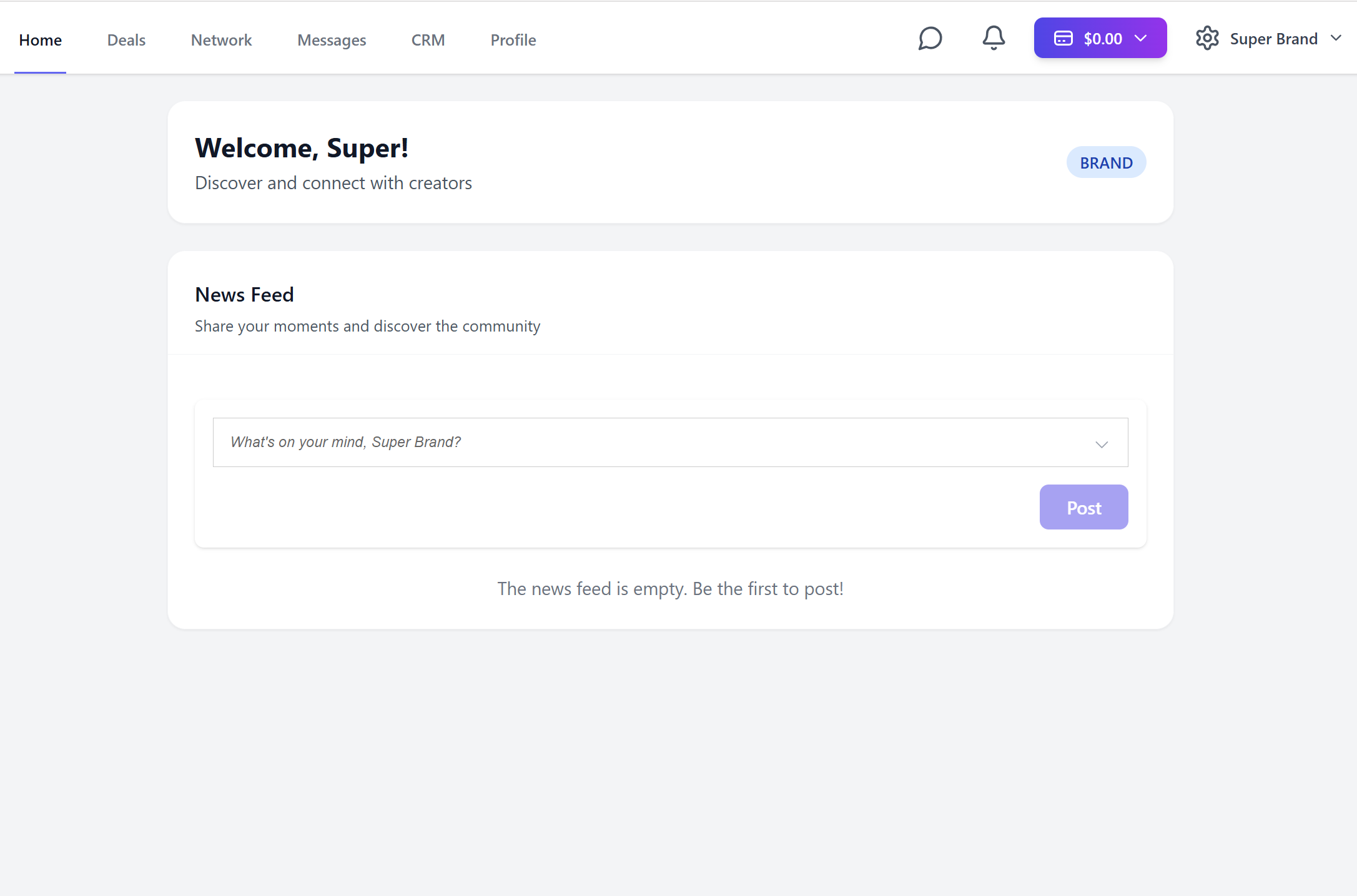
And welcome to Infmap!
Deals
Prerequisites
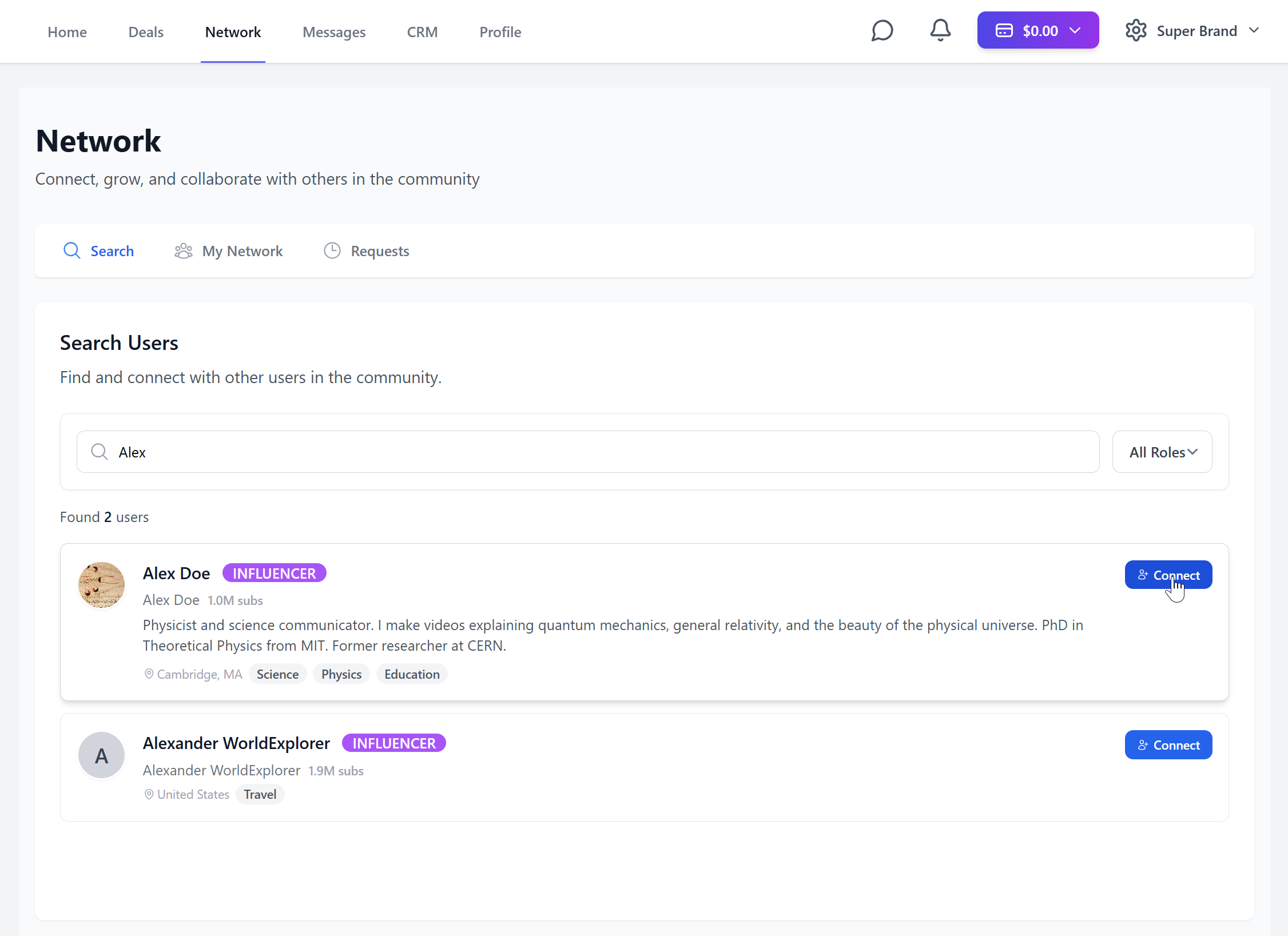
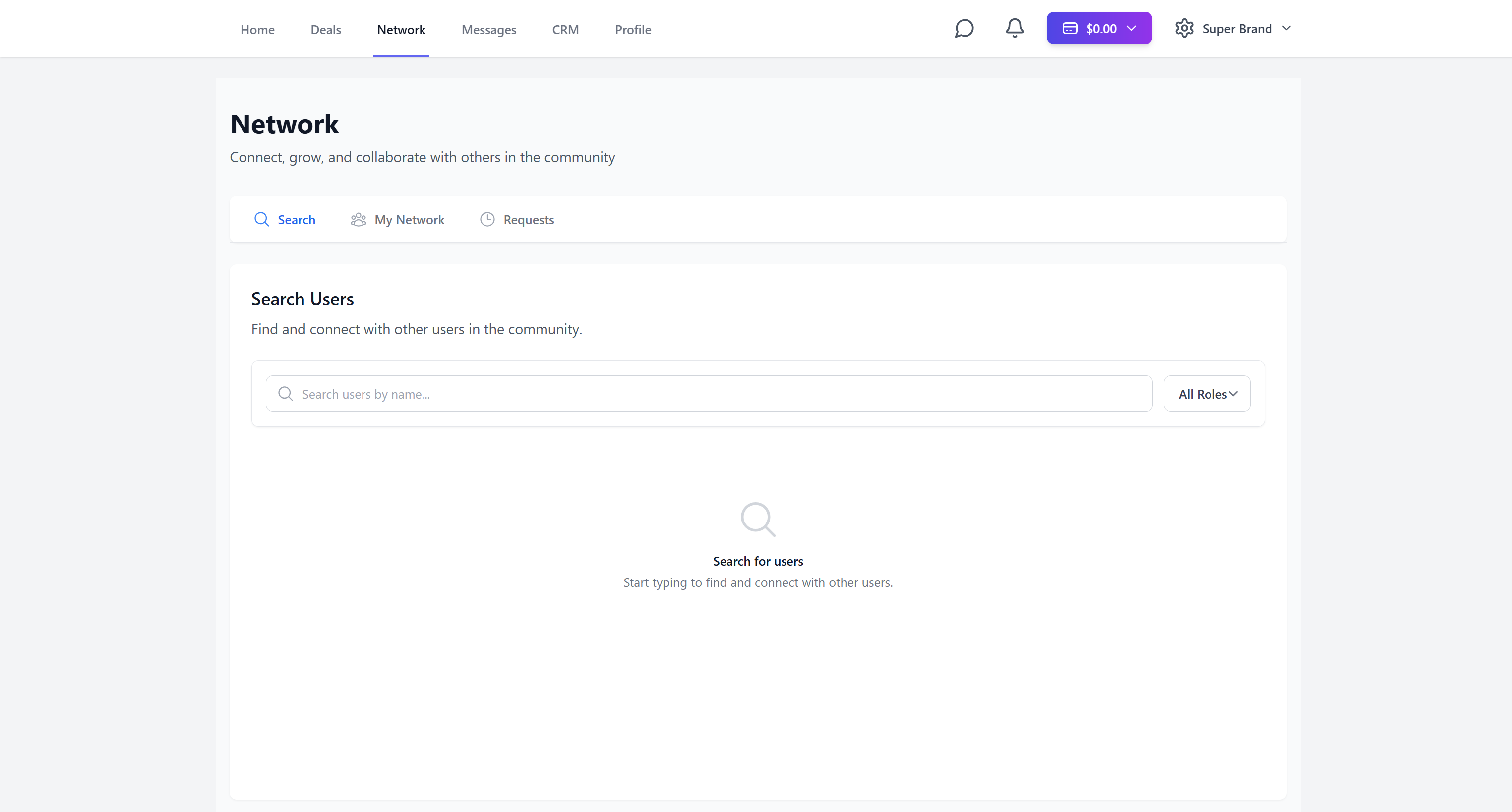
Infmap's main advantage is the ability to make deals seamlessly. To do this, you must first add the influencer to your network.
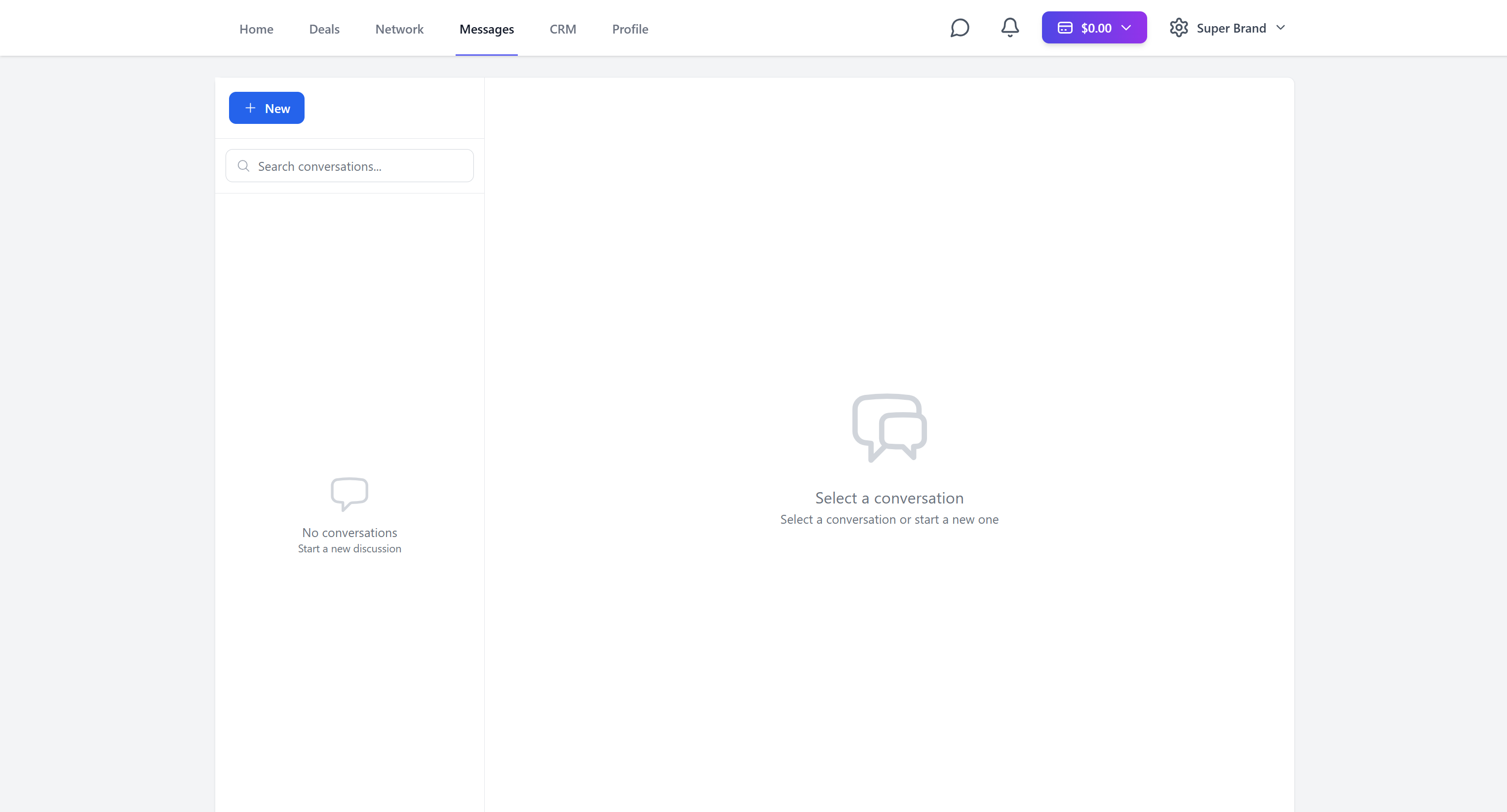
After he accepts, you can message him. This is where you can create the deal.
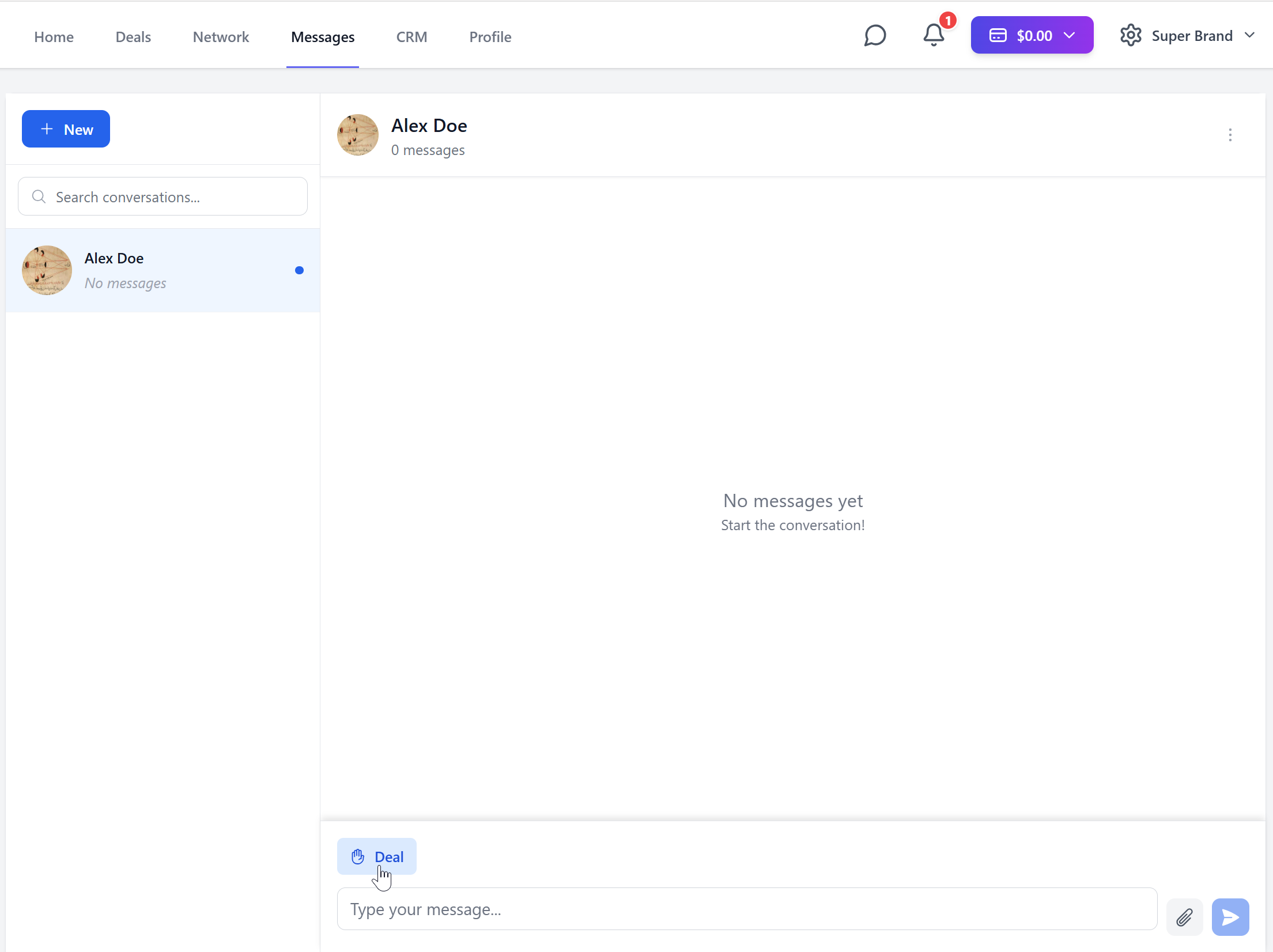
Deal Creation
The deal window looks like this
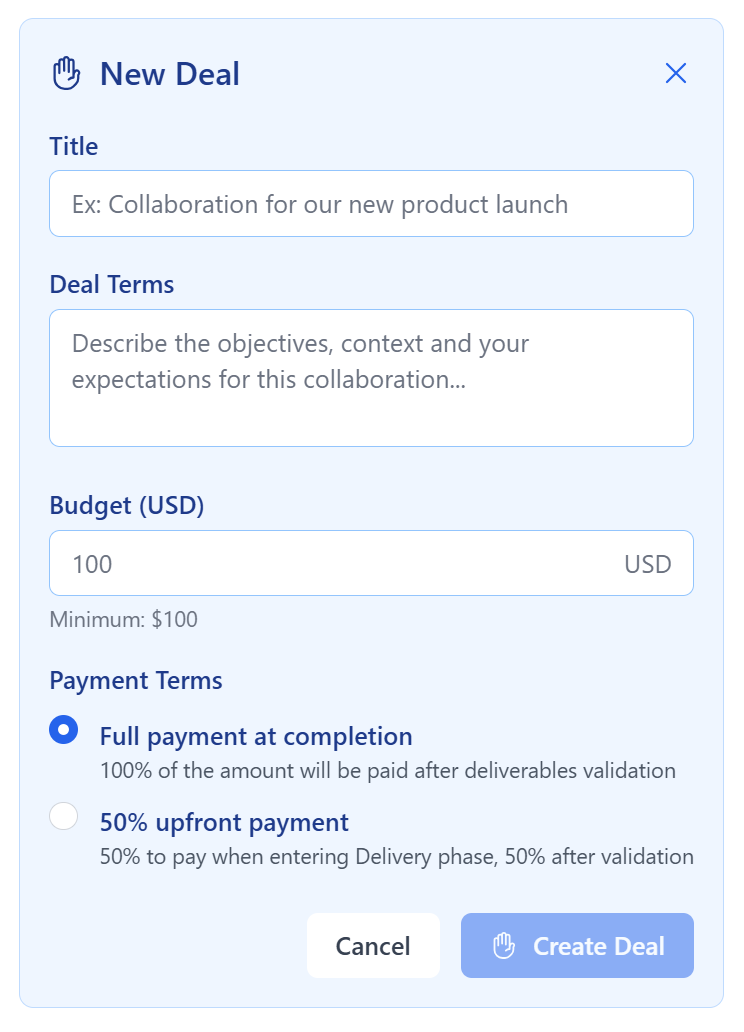
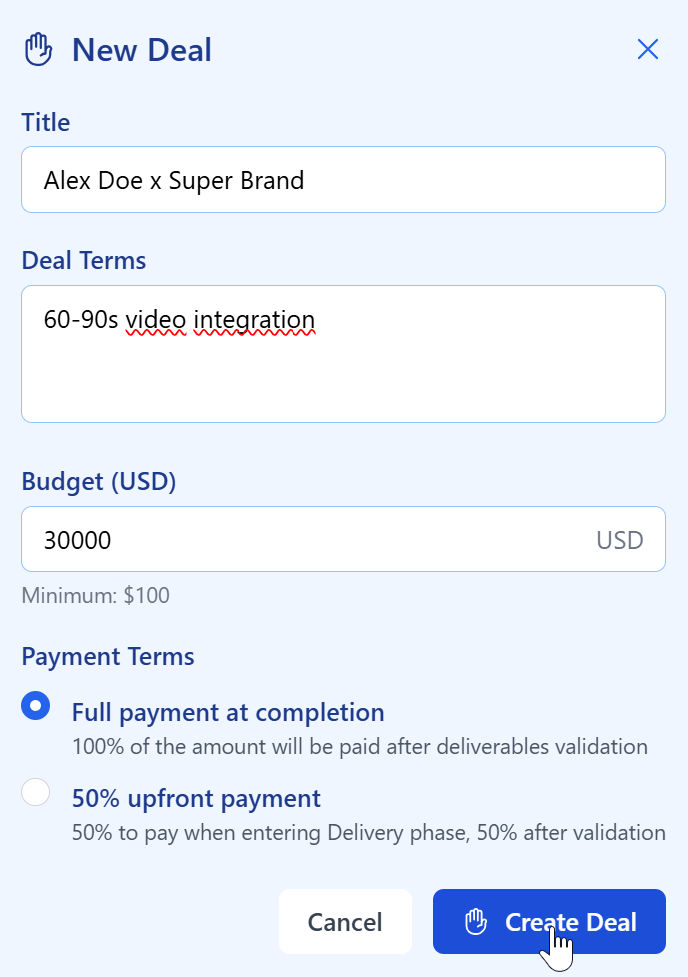
Insert the required information, then click on "Create Deal"
Deal Phases
You are now in the Discovery phase
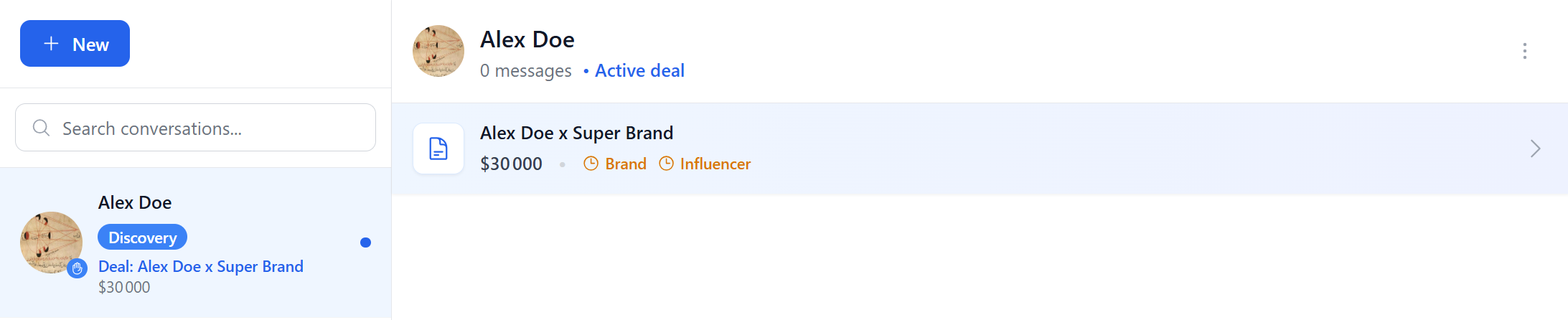
There are 5 phases: Discovery, Negotiation, Contract, Delivery and Payment Moving to the next phase requires mutual consent
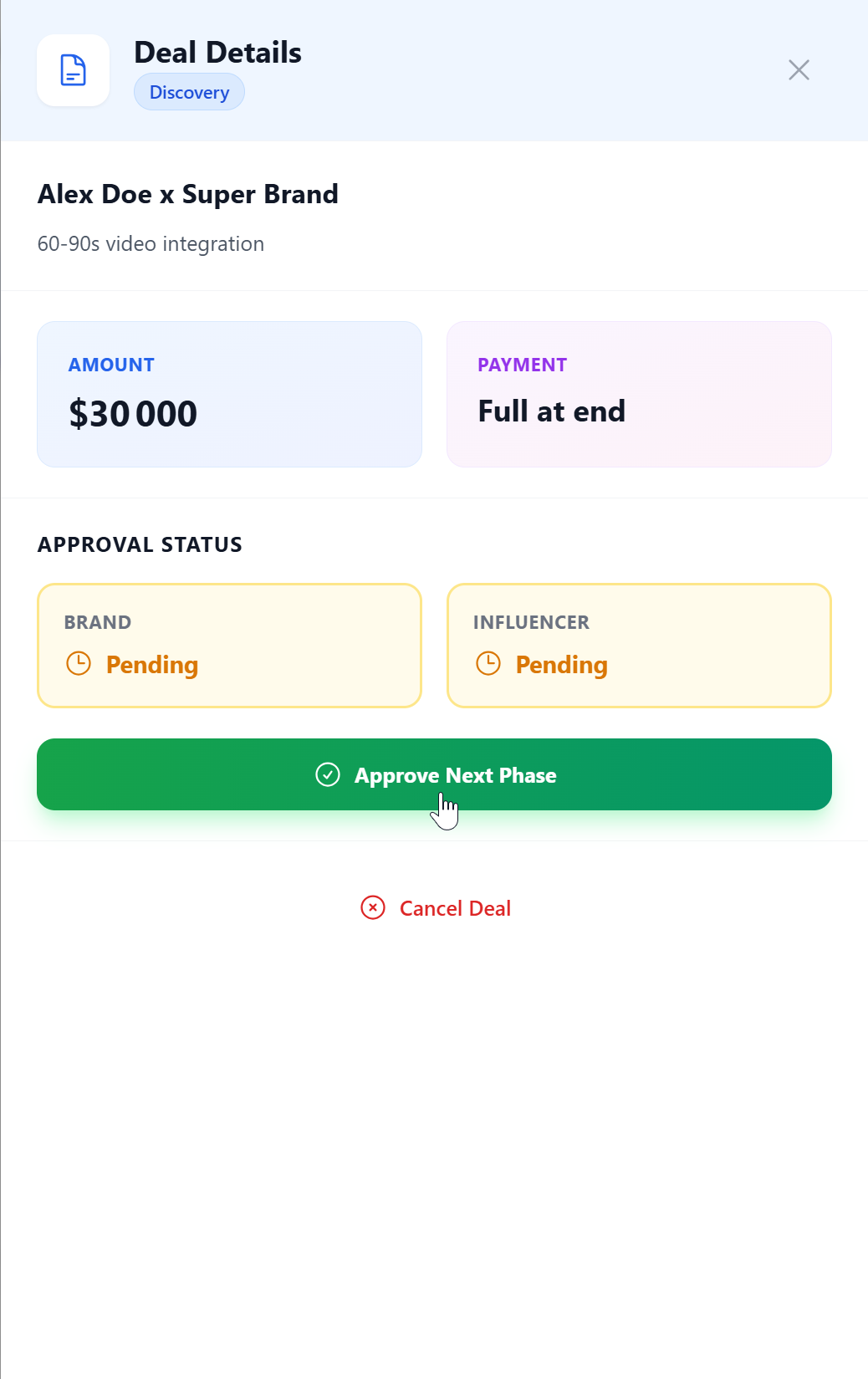
After that is done, you can freely modify the terms of the deal until you agree
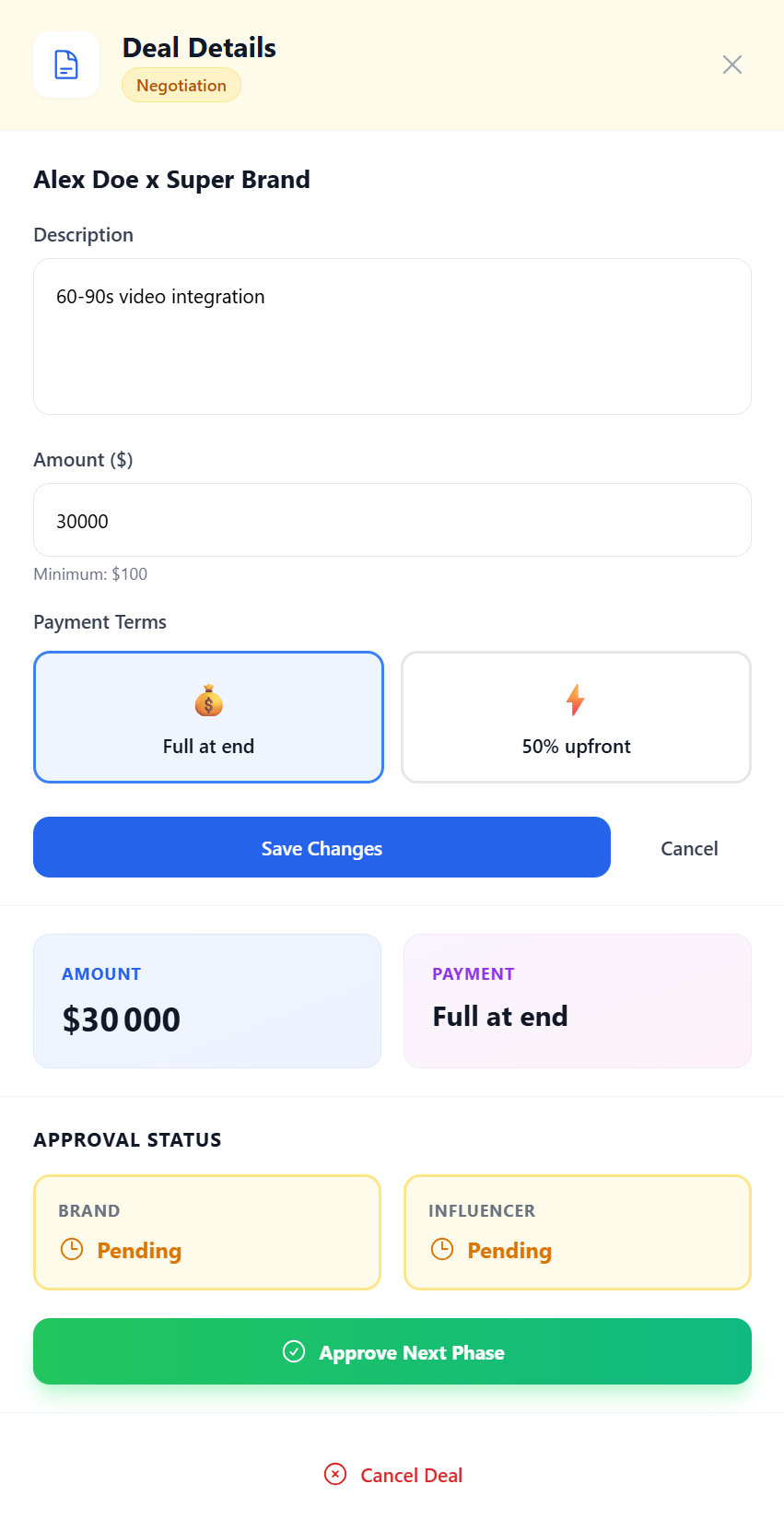
Then move to the Contract phase
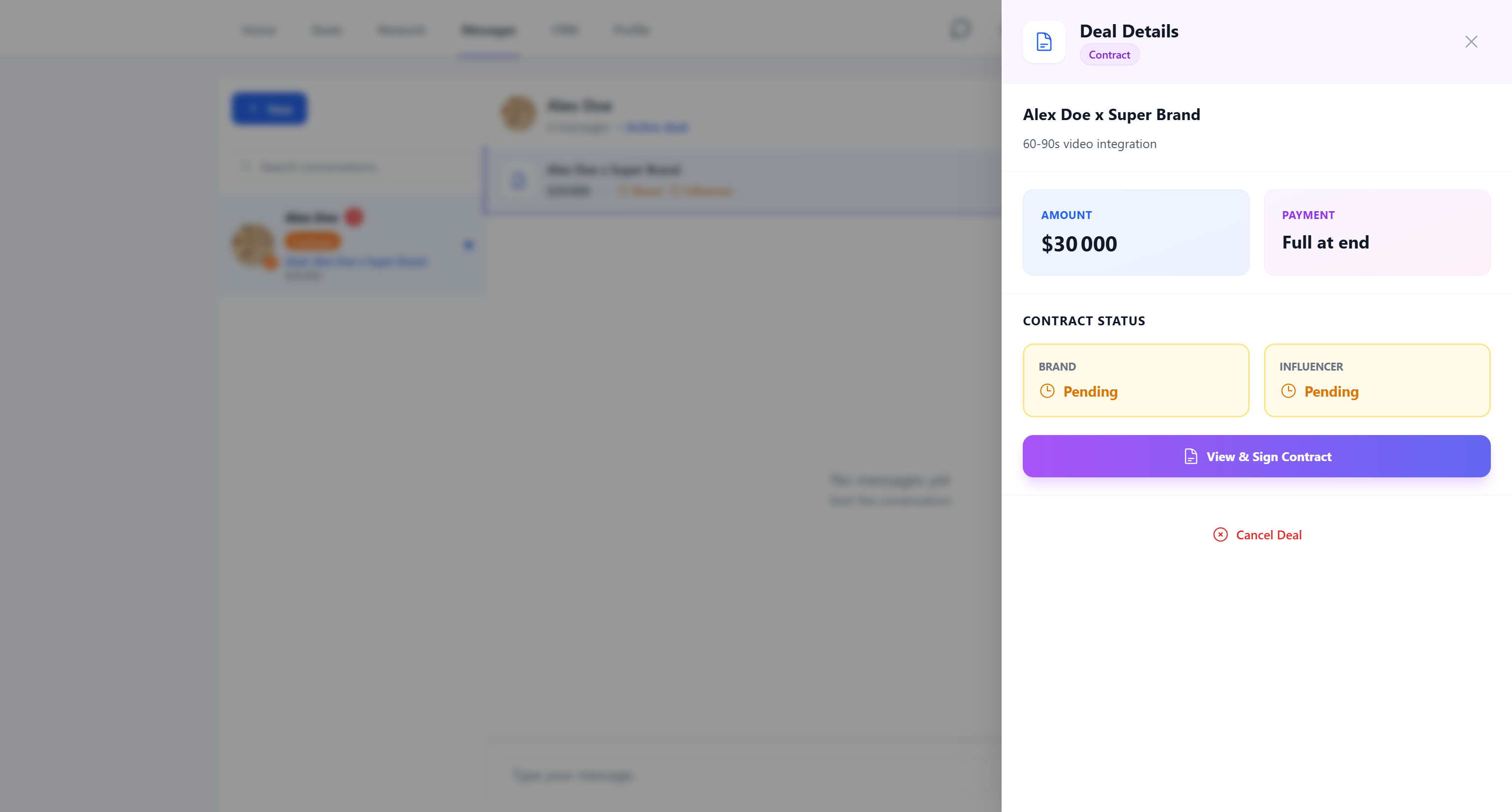
You can modify the contract indefinitely
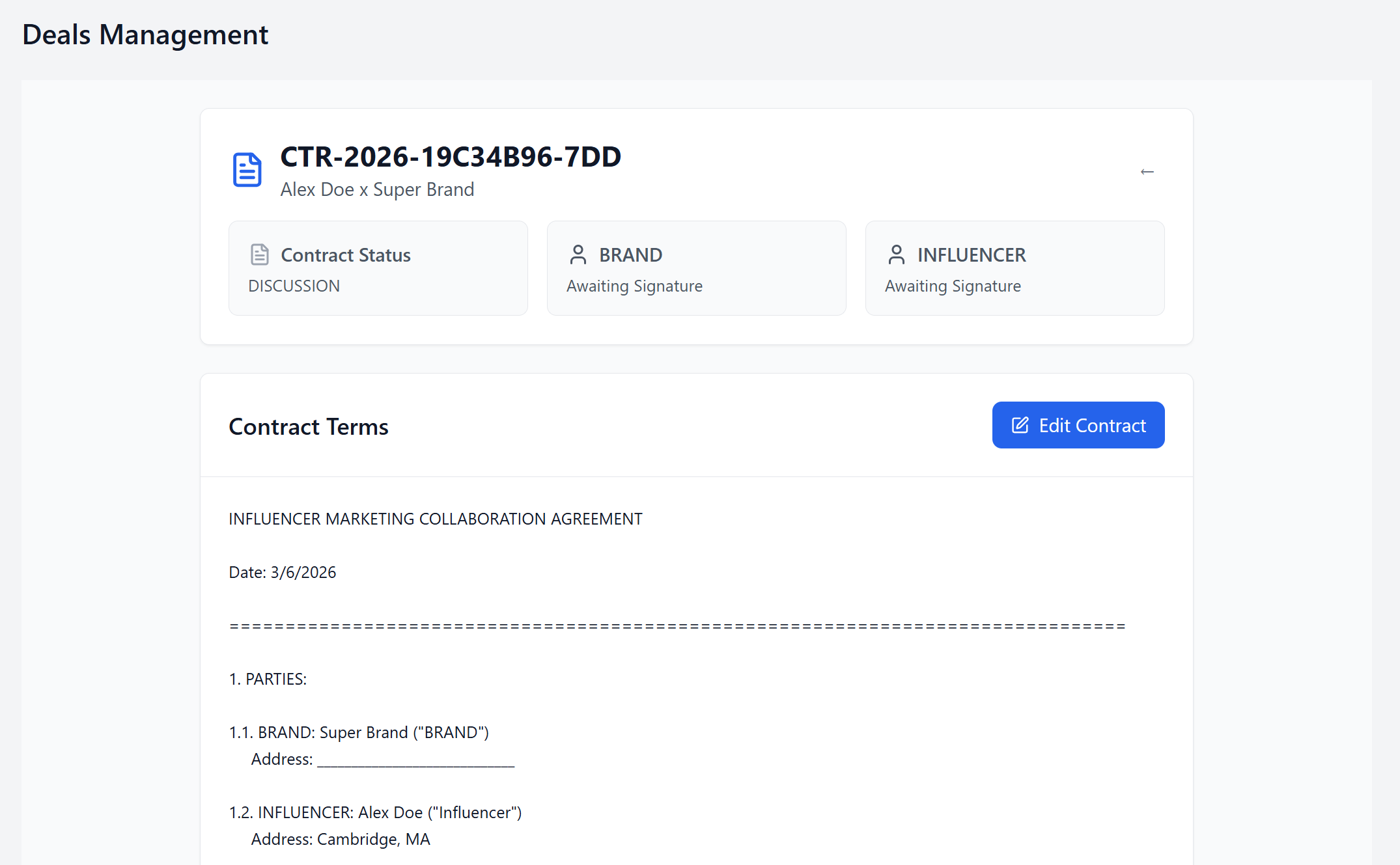
Added lines will appear in green for your contact, and removed lines in red

Before signing the contract, you must choose and draw a signature
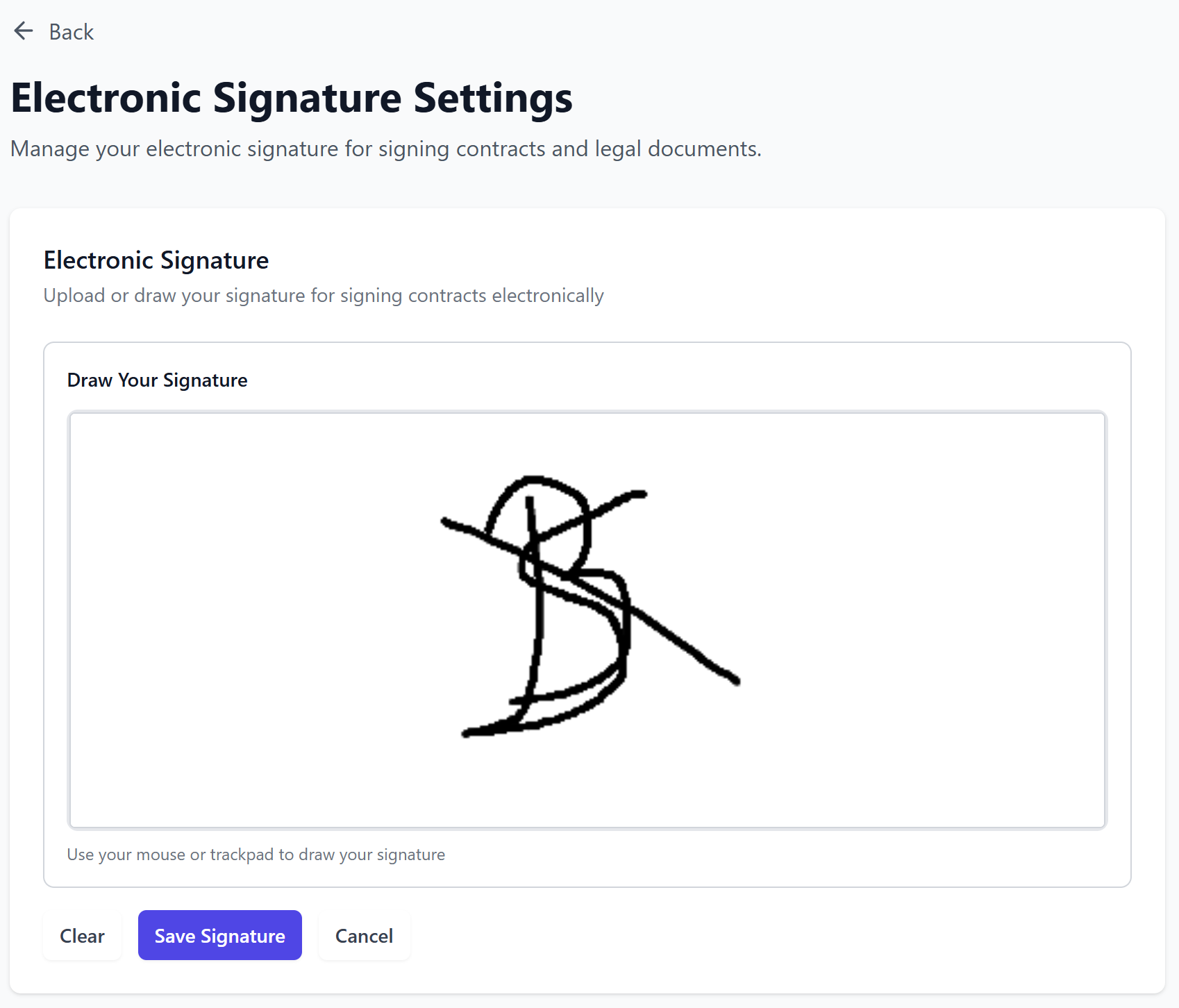
The signatures will be included on the downloadable PDF document after both parties have signed it.
After reaching the Delivery phase, you will need mutual consent to cancel the deal
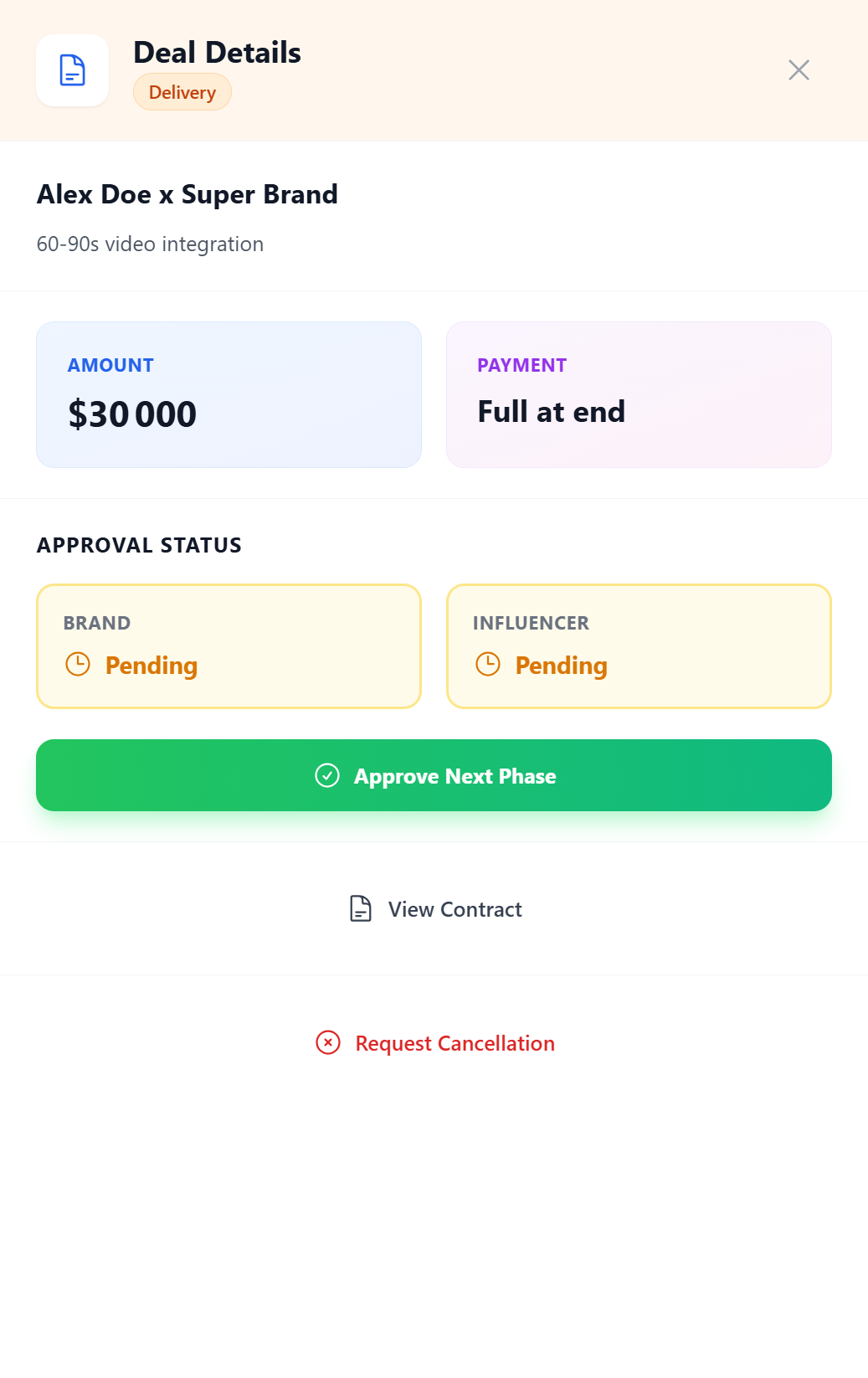
All you have to do now is move on to the final phase after the influencer has completed their mission, and pay for the deal
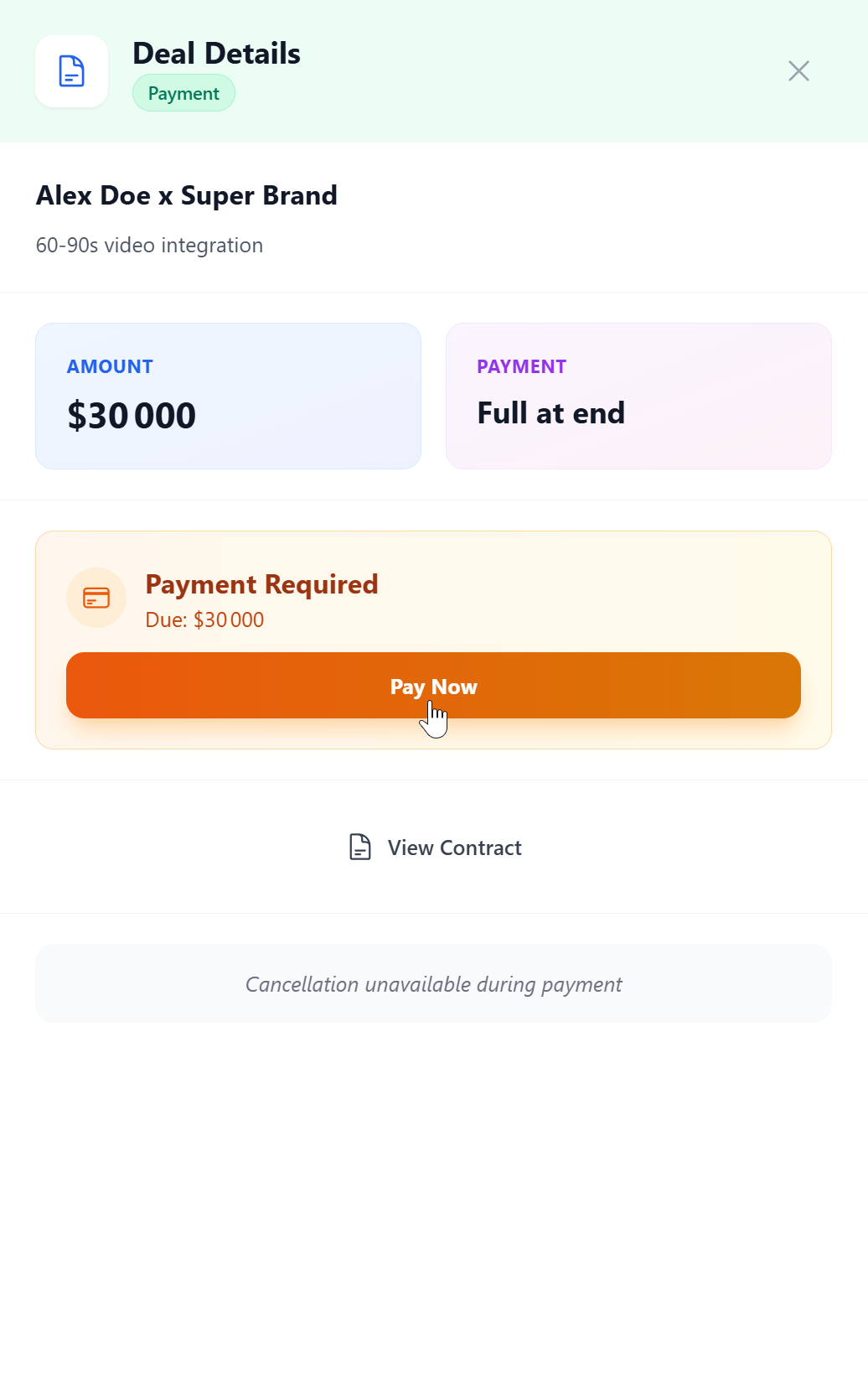
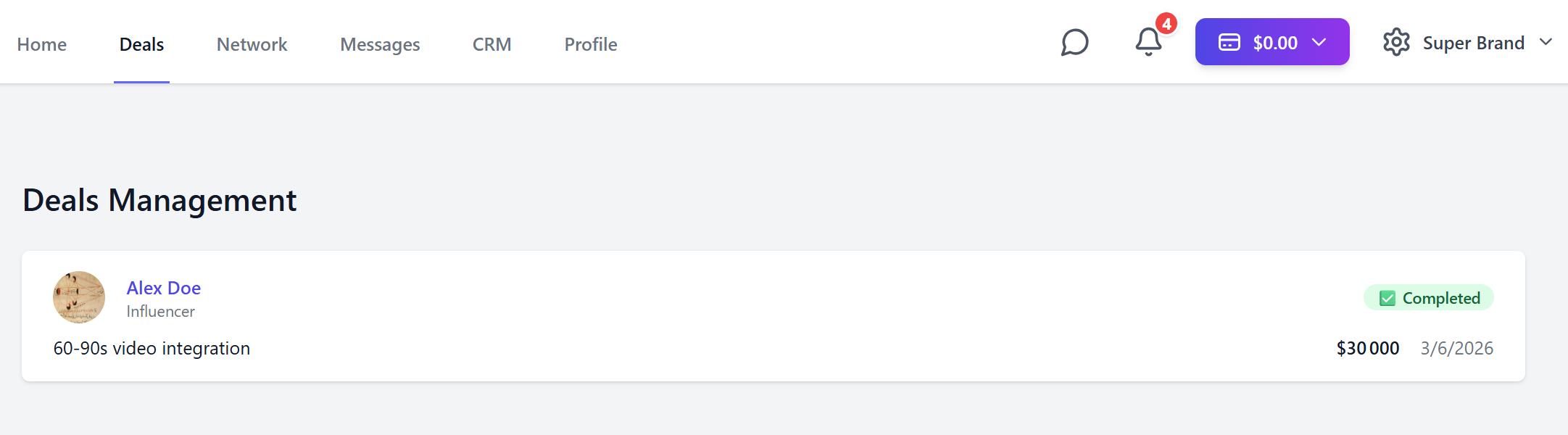
Congratulations, you have made your first deal!
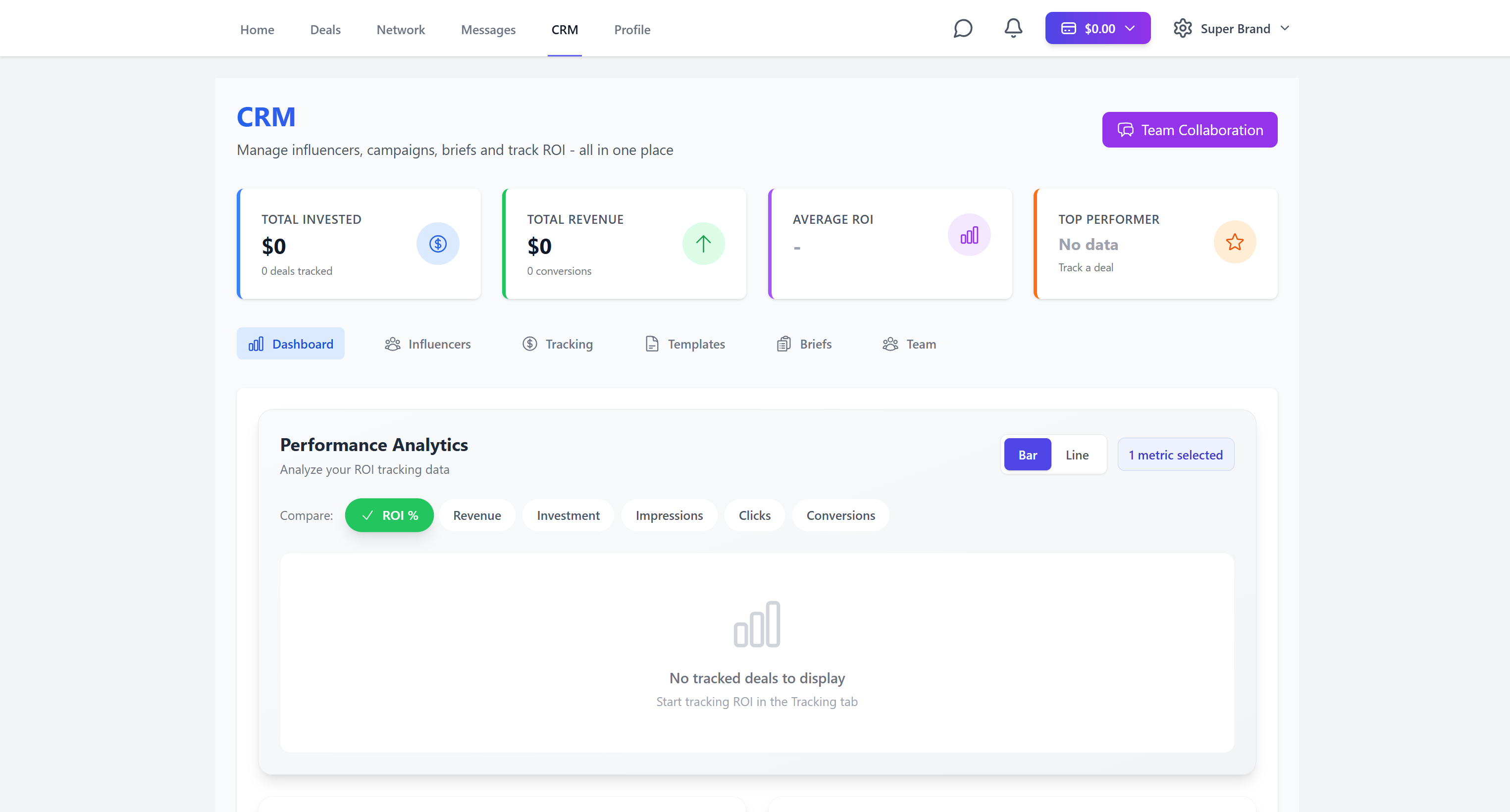
CRM
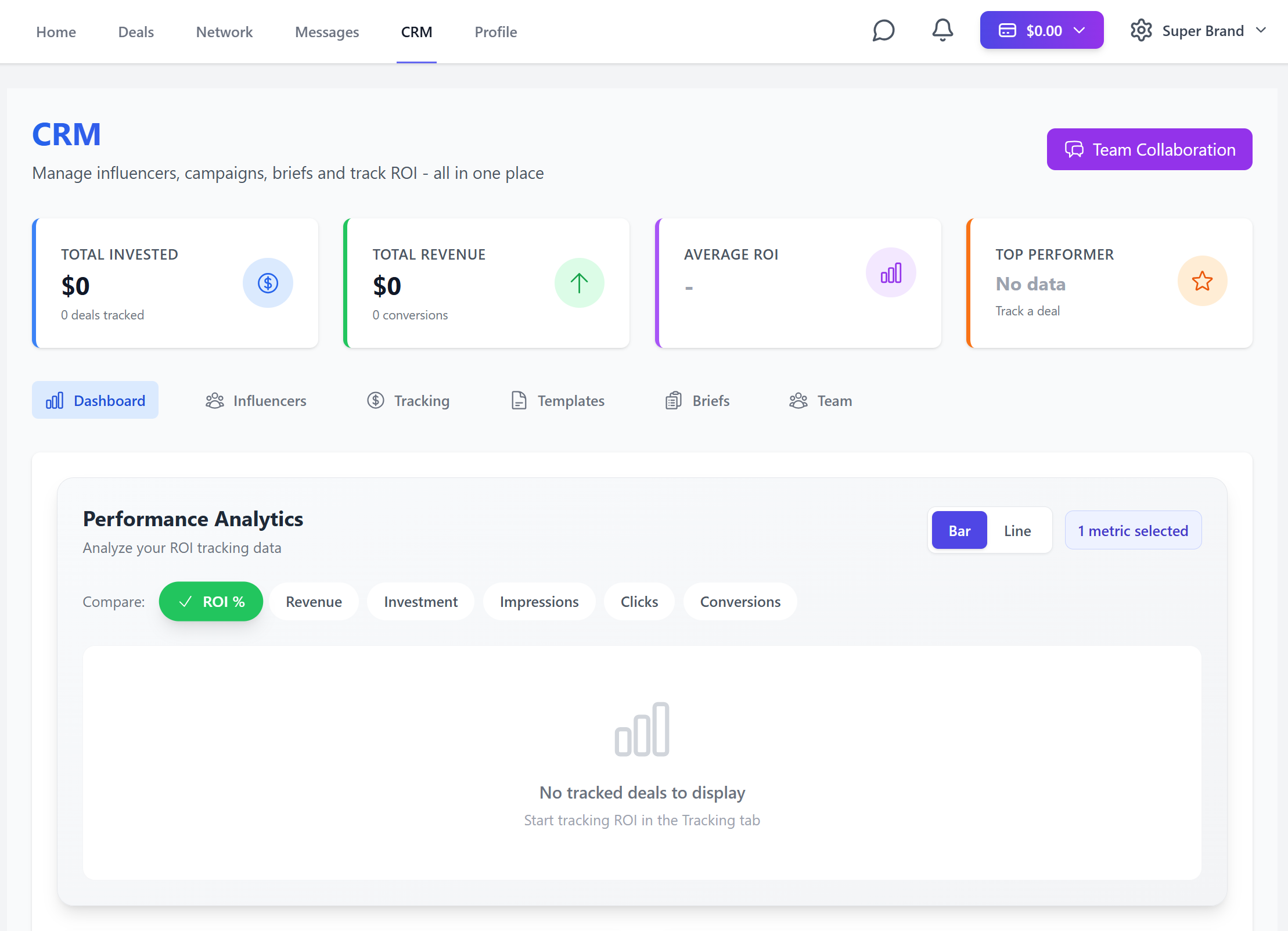
On your brand dashboard
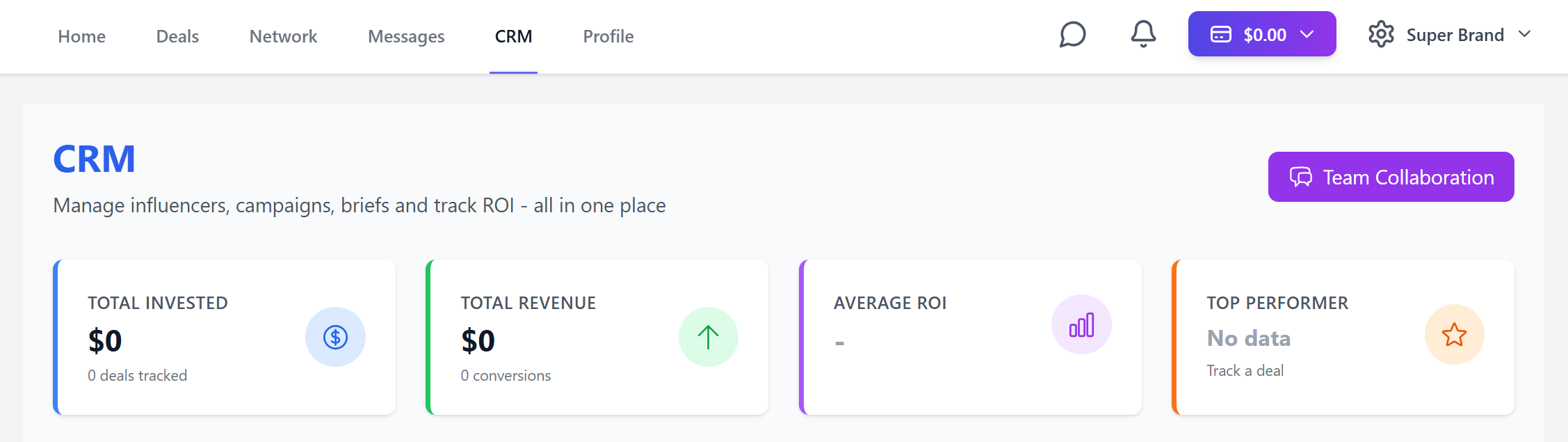
You will have detailed and customizable informative charts.
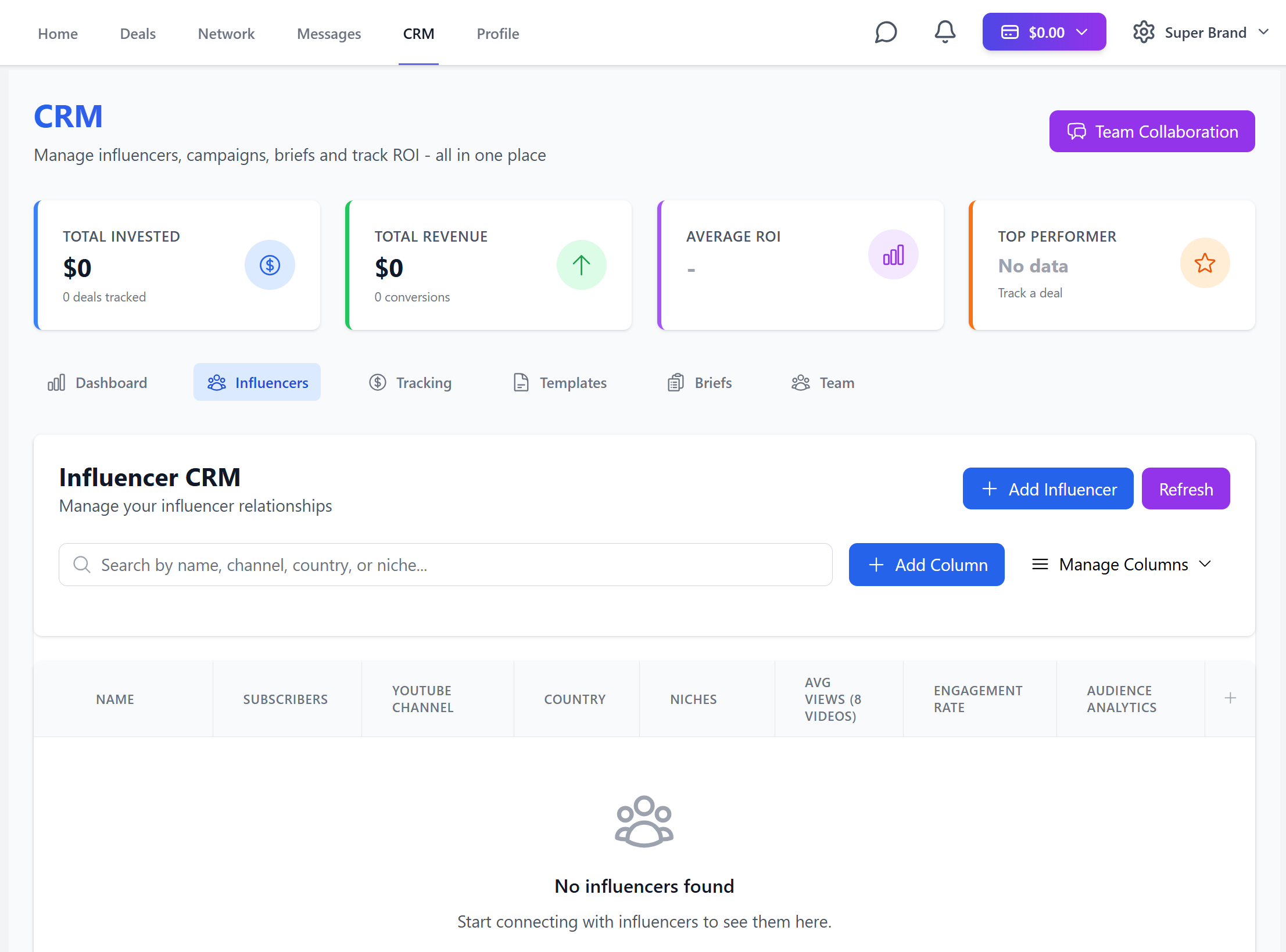
An influencer CRM
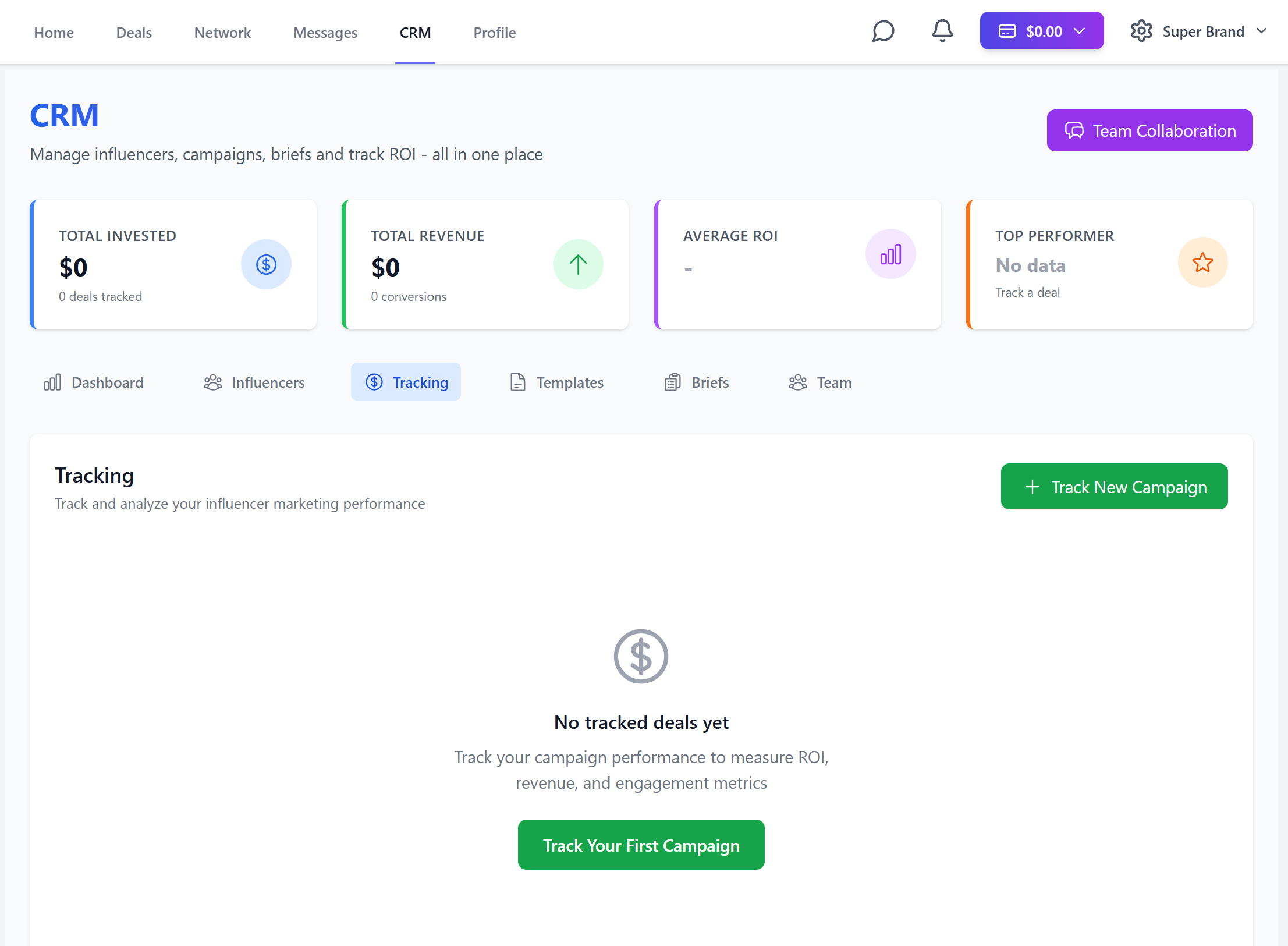
A deal/campaign tracking system
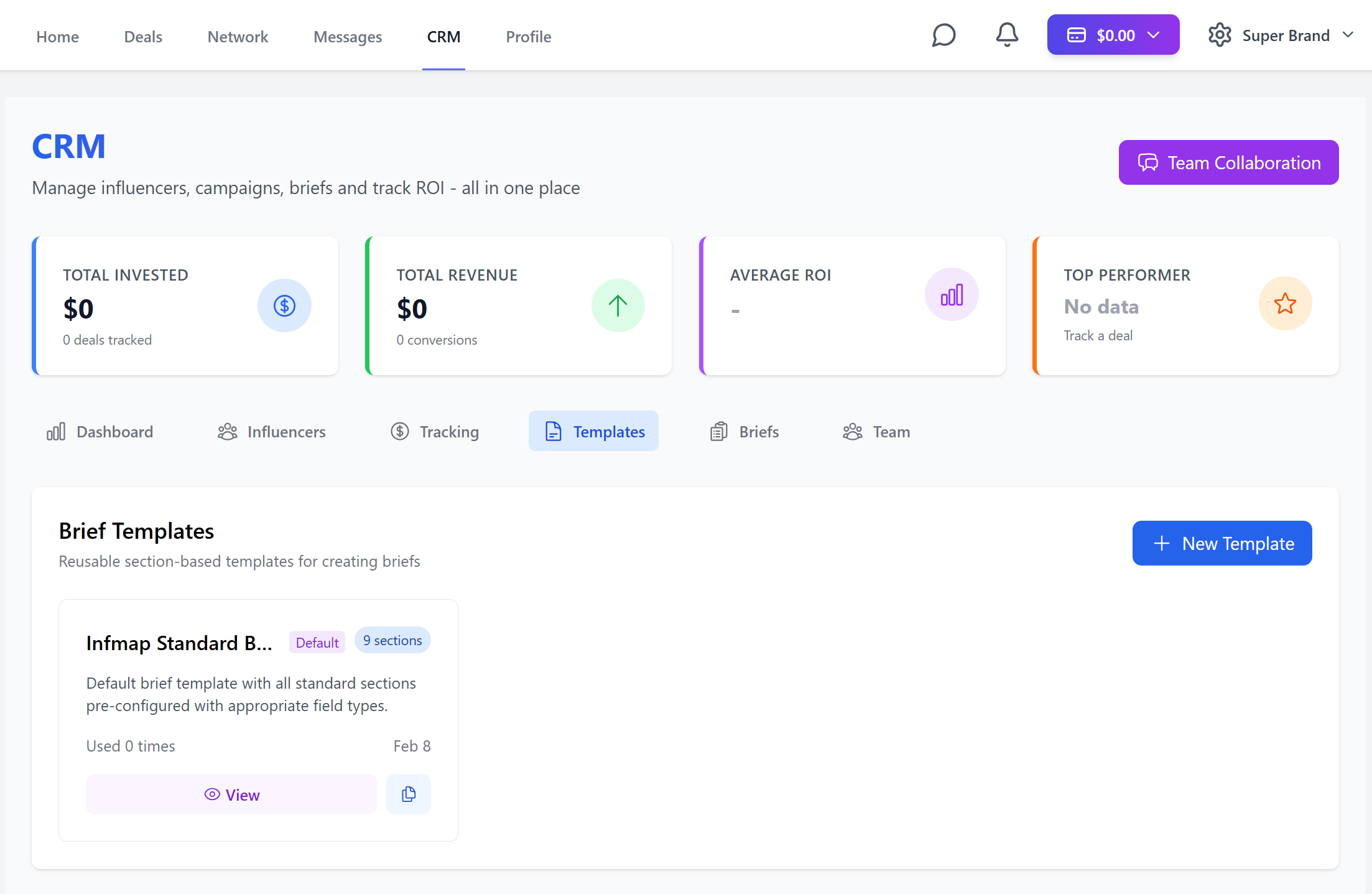
Customizable templates
Customizable briefs
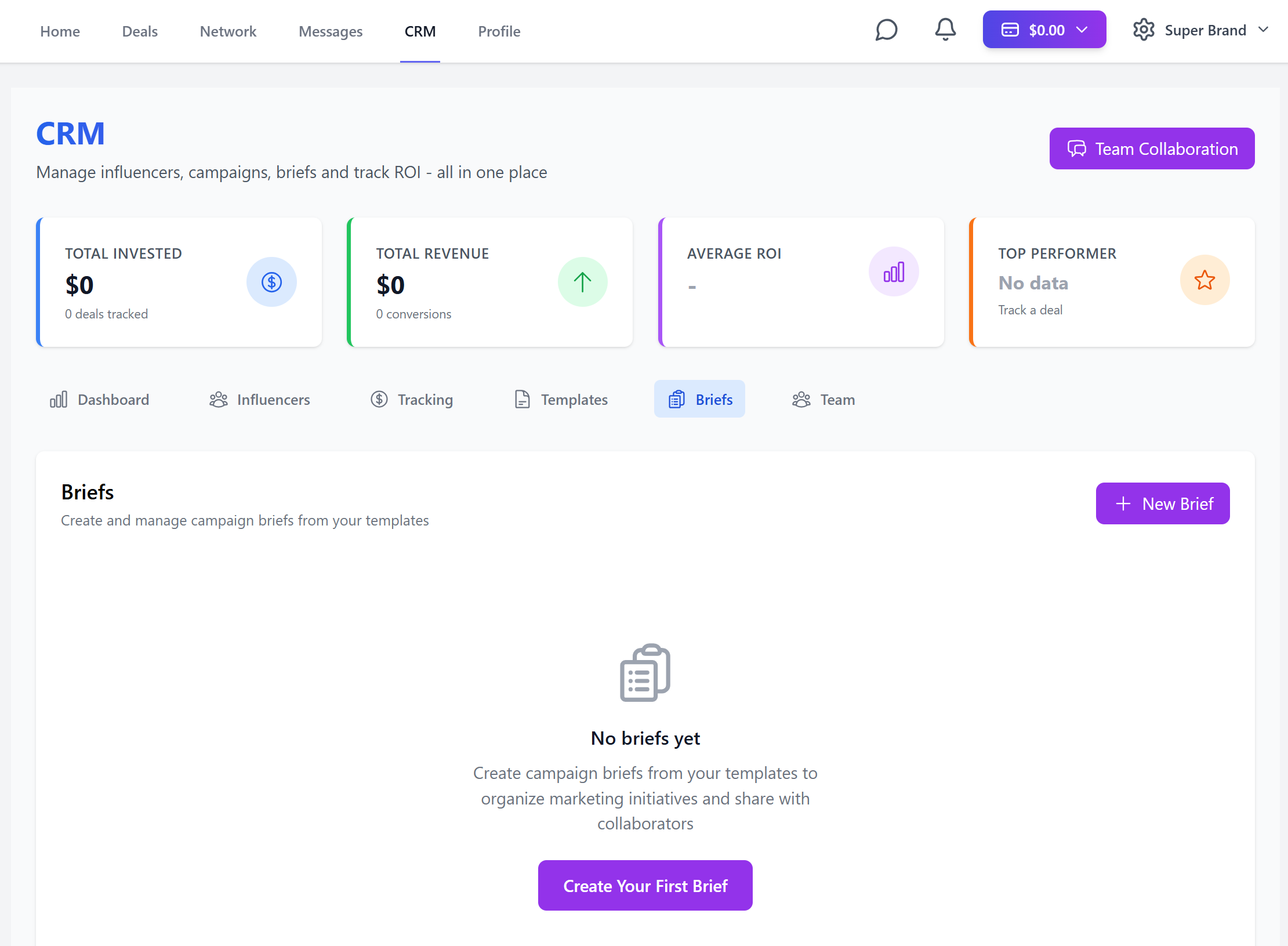
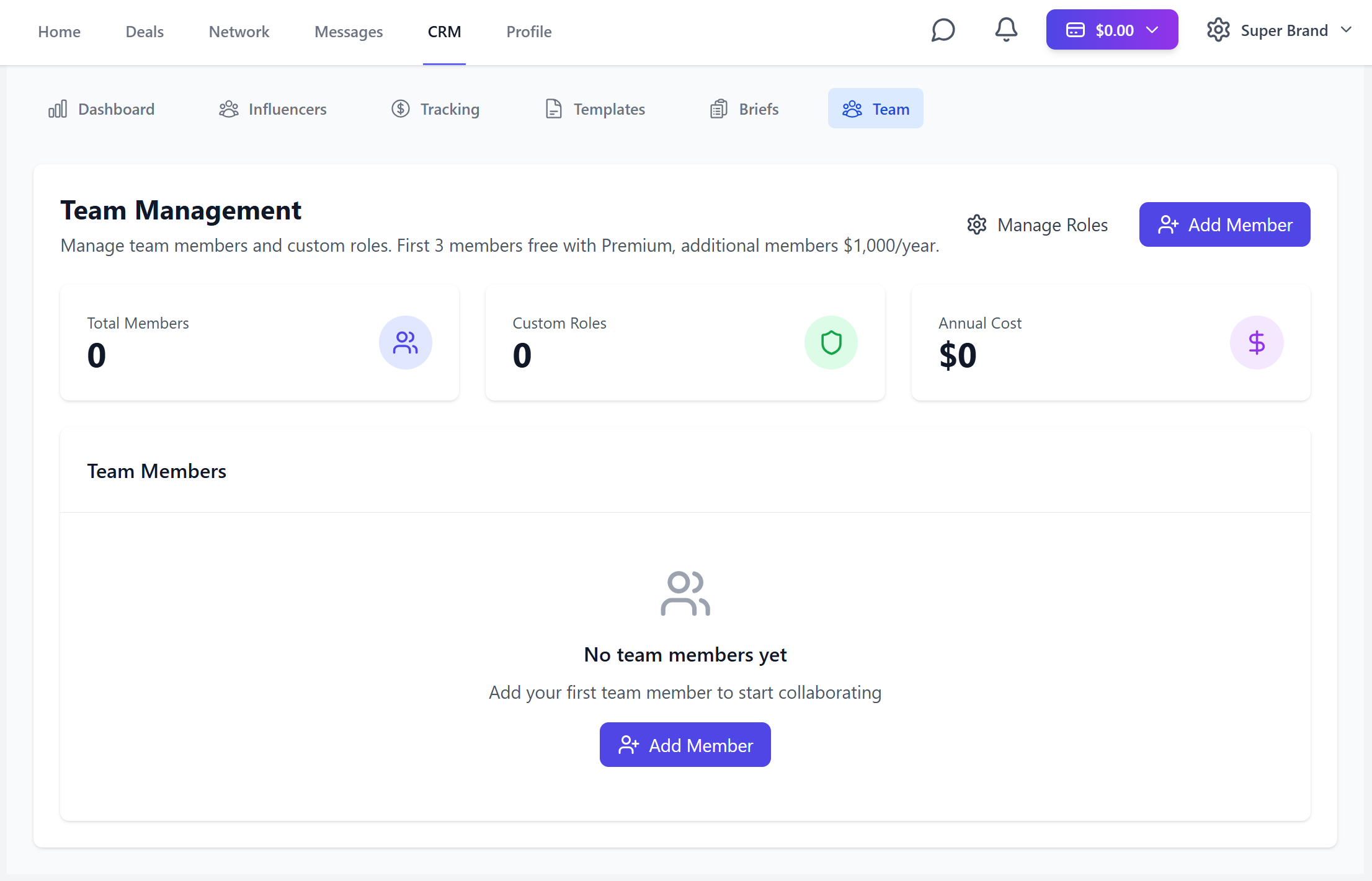
A team management system with customizable roles
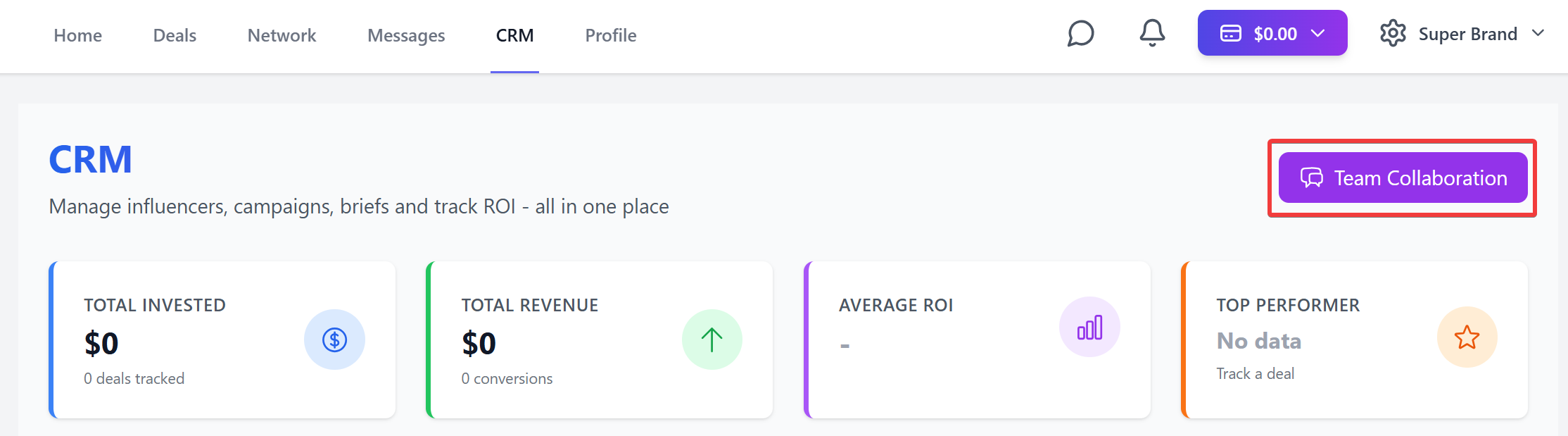
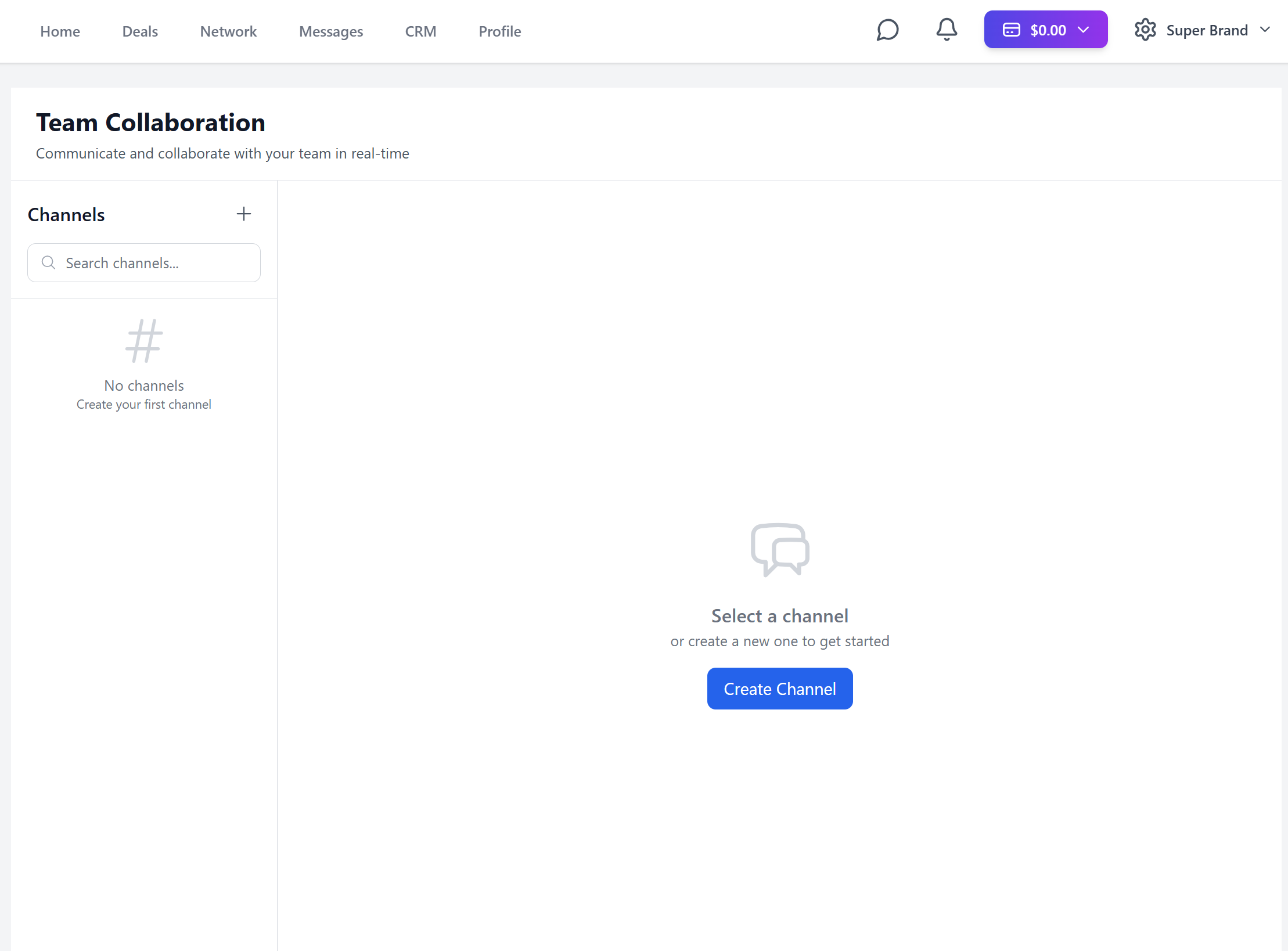
And a team collaboration space
Overview
On the home page
You can share posts and click on other users to view their profiles

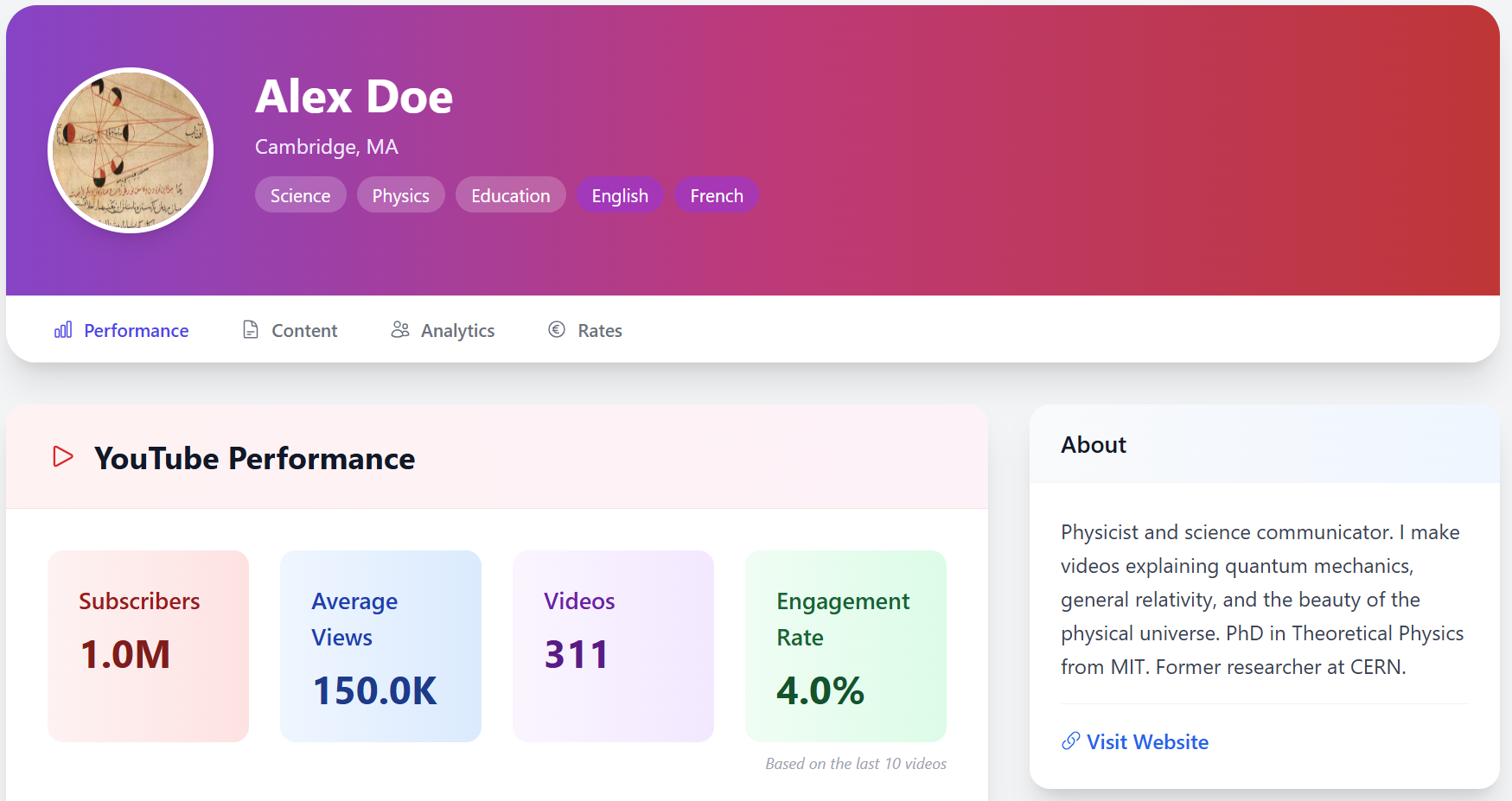
You can have access to additional features by clicking on the menu at the top right corner

You can review and manage your deals on the Deals page
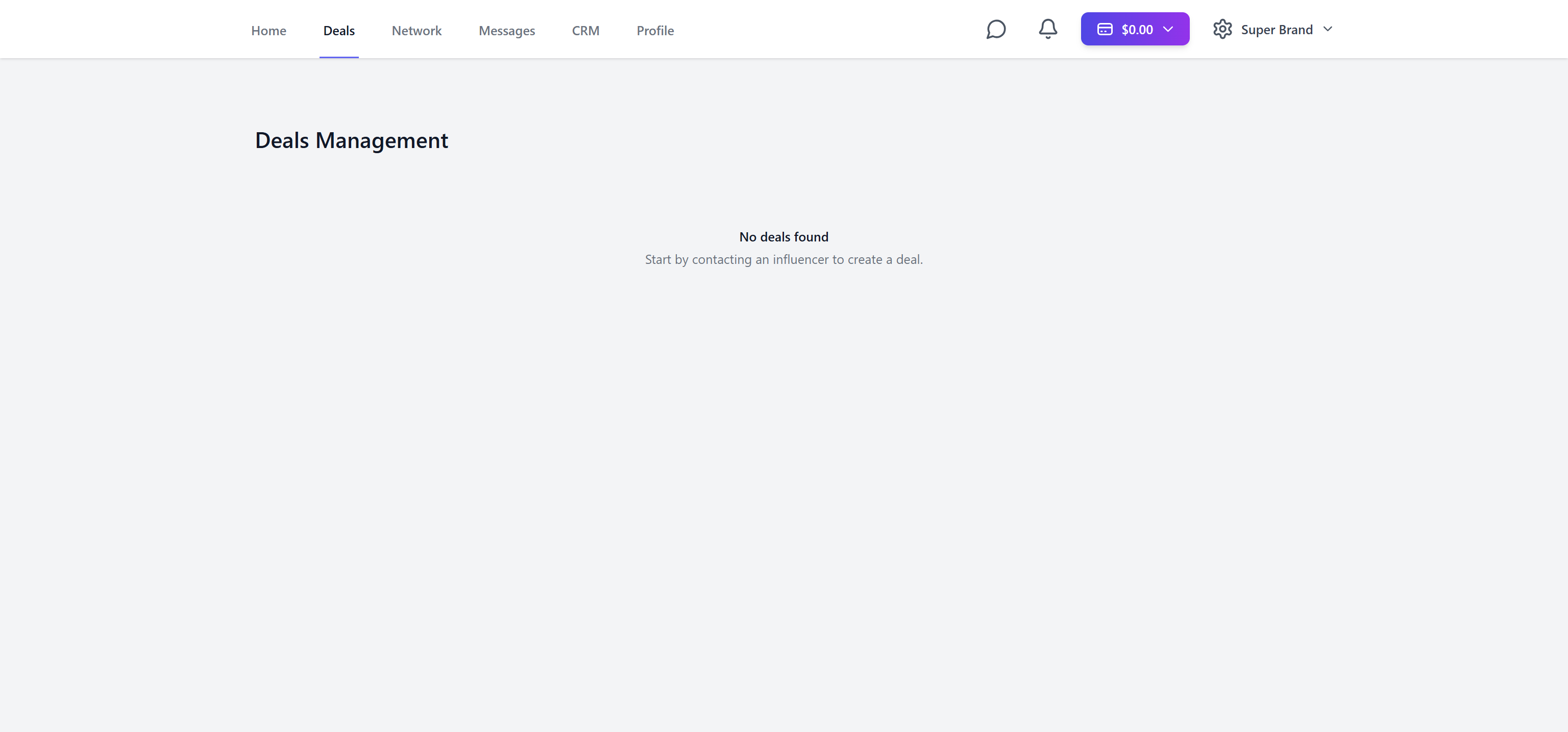
Look for and connect with people on the Network page
Text and make deals on the Messages page
Manage your brand on the CRM page
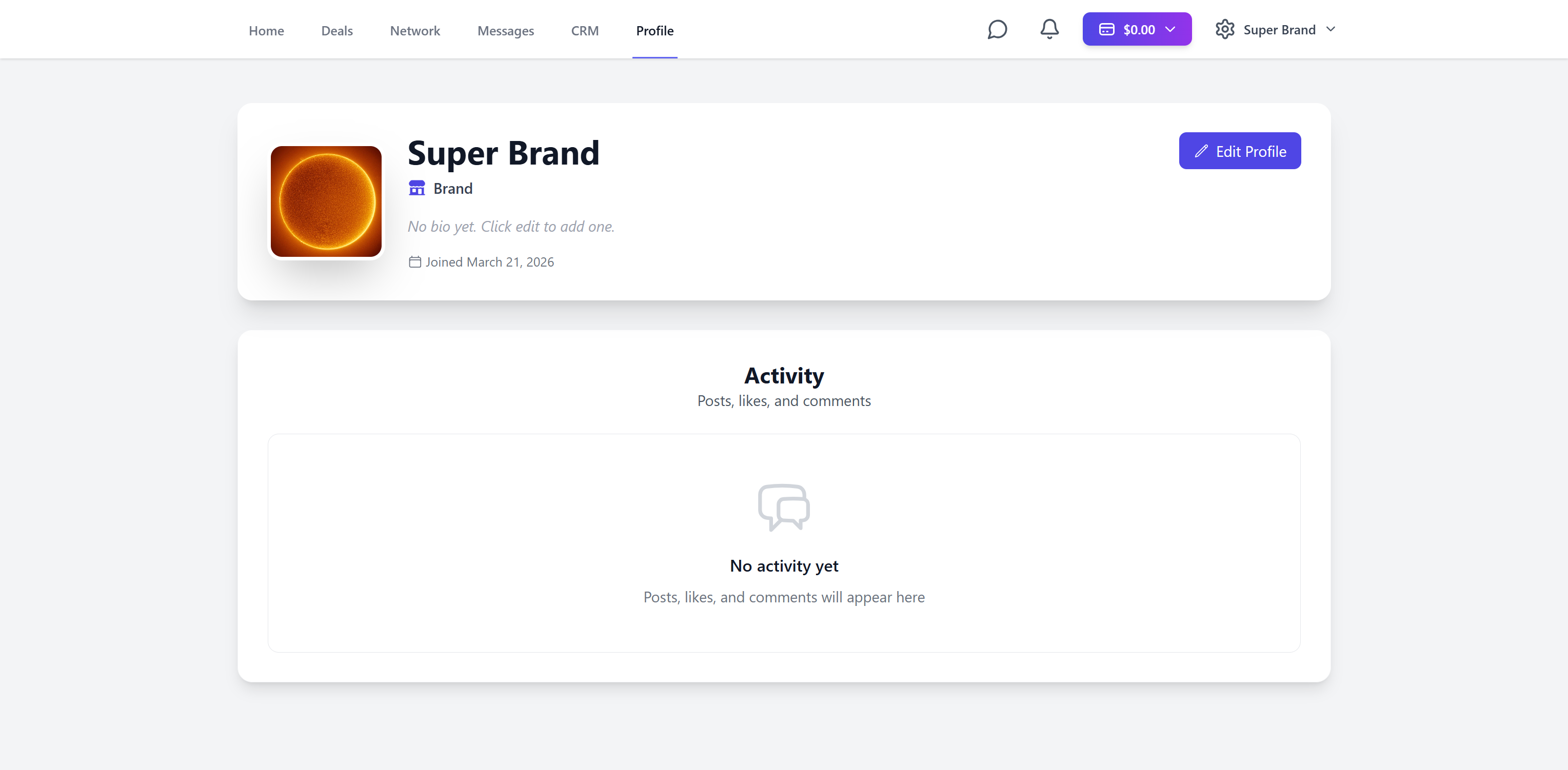
And finally edit your profile on the Profile page
So what are you waiting for ?
See you inside !
No credit card required • Free forever